EasyBuilder Pro Version: V6.10.02.231 Build 2026.01.21
Hello Weintek,
We just received a new batch of HMIs - these are the V2 model that now requires setting password to meet EN 18031 requirements.
For the older model, I created a x.CONF file that changed the default 111111 password to our preferred p/w. This allowed Shop personnel to use a USB stick with the project file (and the x.CONF file). They had to use the 111111 password initially, but after download, the password was changed to our preferred p/w.
On the new V2 models though, the user must change the password on the HMI before they can use a USB stick with the project and CONF files.
Is there any way we can do this thru EB Pro using a CONF file, without requiring the user to change the default 111111 password to meet EN 18031? We want to avoid having Shop personnel responsible for setting an EN 18031 p/w at the HMI?
ALSO - what is the process for resetting the HMI in cases where Shop personnel have changed the p/w to meet EN 18031, BUT have forgotten the p/w.
Thank you for your questions! The newer models require an initial password change before downloading a project via USB. However, EasySystemSetting can be used to configure the HMI’s system settings and passwords as part of the USB download process.
Here are the steps for this process:
On the HMI, configure an initial password that meets the updated security requirements (e.g., 111111AA).
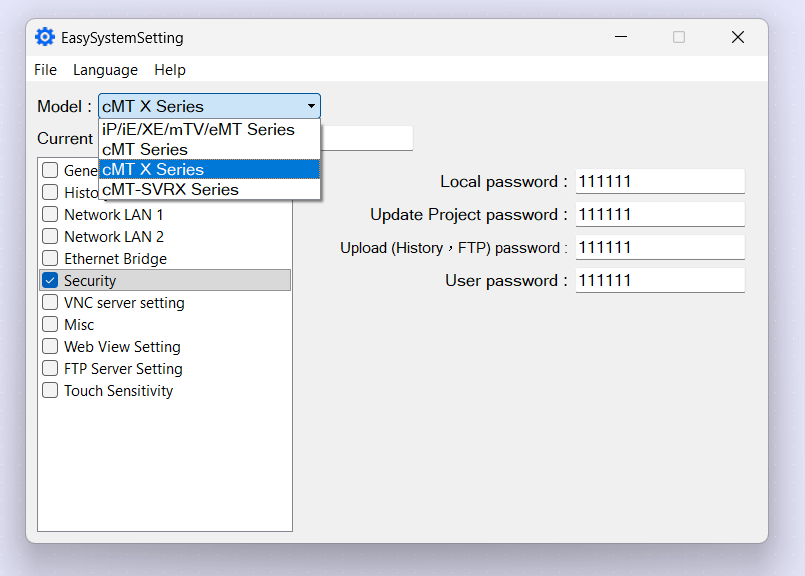
On your computer, open EasySystemSetting. Set your model to cMT X Series.
Within EasySystemSetting, set the Current Local Password to the password configured on your HMI in Step 1. Under the Security tab, configure your preferred password. This will be the password the HMI uses after downloading the project via USB. Feel free to select any additional settings from the left-hand menu that are required for your project.
Once done, select File - Save, and save the Config file somewhere convenient.
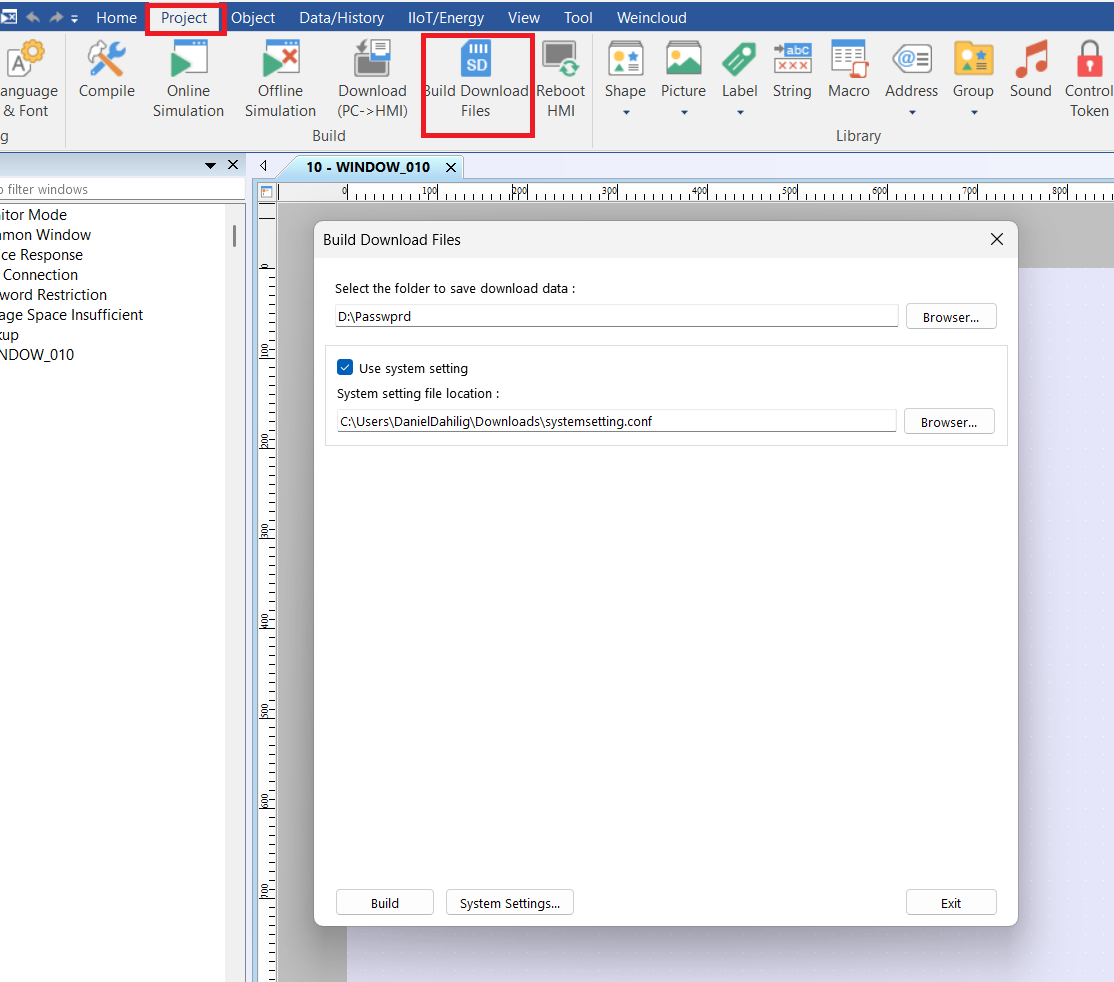
Now we’re going to open EBPro and navigate to the Project tab. Select Build Download Files and within this window select Use System Settings. This is where you’ll select the Config file we previously saved from EasySystemSetting.
For Select The Folder to Save Download Data, select the USB/Folder that you will use to download the project to the HMI. Then hit Build.
Once complete, please try downloading the project to your HMI via USB. After the download, the HMI should use your preferred password configured in Step 3.
Additionally, on supported HMI models, you can restore the HMI to factory defaults by selecting “Reset HMI” and entering “default111111”. Please note that this process will erase all project files and data stored on the HMI.