- HMI Model: MT8072iP
- EasyBuilder Pro Version: latest
I need to add a special feature to my project and I am not sure how to proceed. Can you please suggest a sensible approach? Maybe you could direct me to tutorials or other resources.
I need to log some data into a spreadsheet suitable for analysis using Excel..
I plan to use a binary variable in my PLC to trigger reading of 2 accumulators and record/log the data into memory.
I have previously set up datalogging but dont have it working successfully
My first problem is I dont properly understand some key aspects about Data Sampling objects. I have set up a DS object to monitor 4 analog variables at a defined/fixed interval (time-based). My new feature involves 2 channels of trigger-based data sampling.
I had the idea that I would need to set up a new/separate sampling object, but there doesnt seem to be any such option. The only option I seem to have is to add 2 new (trigger-based) channels to my existing data sampling object. Is that right?
The data sampling object seems to exist within the “project” file, whereas the display objects live within an HMI window - is that right?
I have set-up a Trend Display, but am not sure how to link it to the data sampling object (first 4 channels).
In my new case, I need to set up a History Data Display - linked to the trigger-based channels of data sampling object. I am not sure how to achieve this.
I have watched a number of video tutorials on sampling etc, but the worked examples are usually very simplified - ie just a single HMI variable - not 2 different display objects, nor 2 different time bases.
I would appreciate further advice on how to achieve the results I want.
Hi @BrianF_NZ ,
Thank you for your question! We would be happy to offer an approach for your set up.
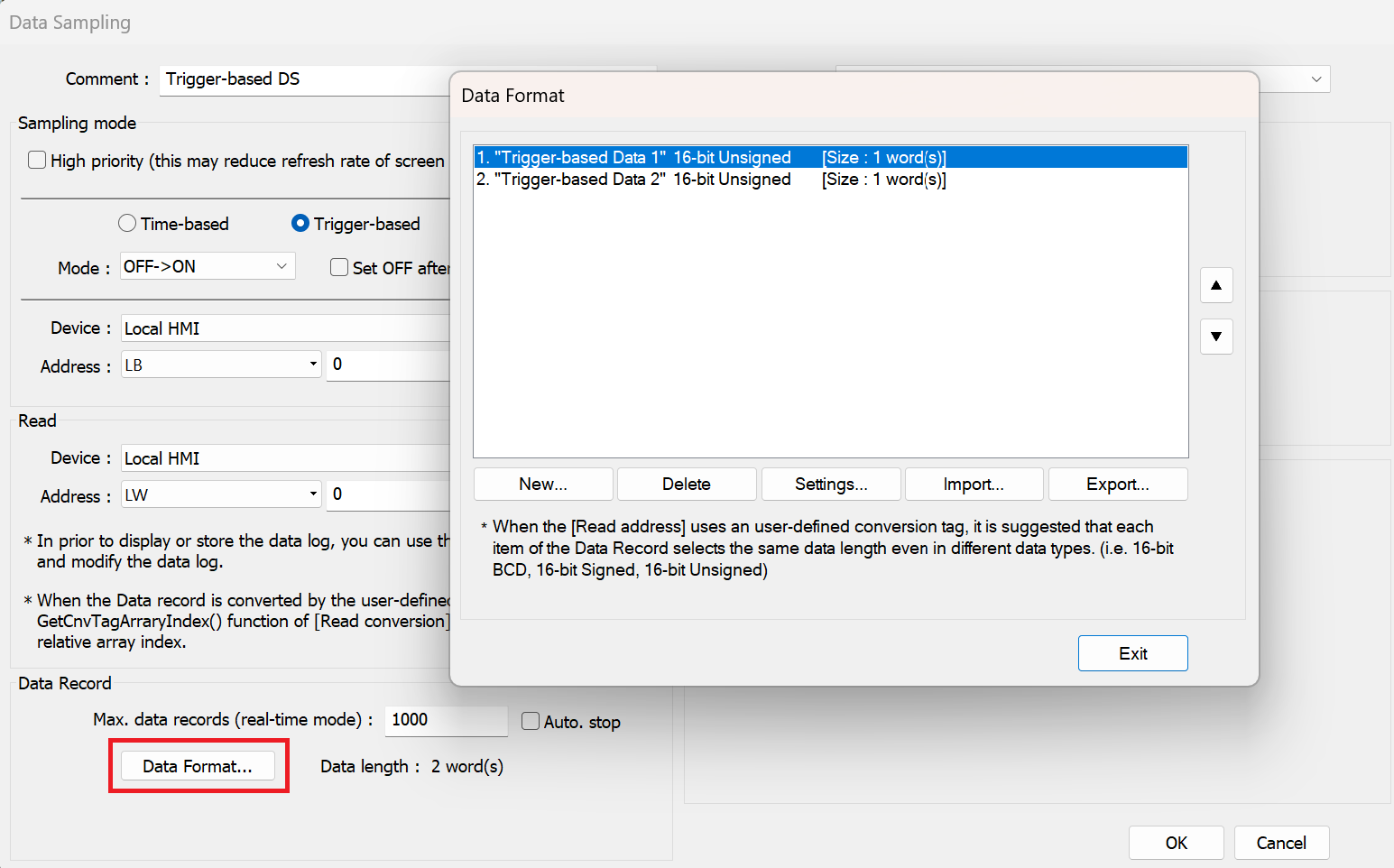
You can create a completely separate Data Sampling object by selecting New in the Data Sampling window. If you already have a time-based Data Sampling object and want trigger-based sampling as well, simply create a second Data Sampling object configured for Trigger-based sampling. Then, add the two channels you would like to log within that new Data Sampling object’s Data Format settings.
Yes, your understanding is correct—Data Sampling objects are configured at the Project level under Data/History > Data Sampling and are independent of any individual HMI window.
Display objects (such as Trend Display and History Data Display) are placed within specific HMI windows, and they reference a Data Sampling object by its index.
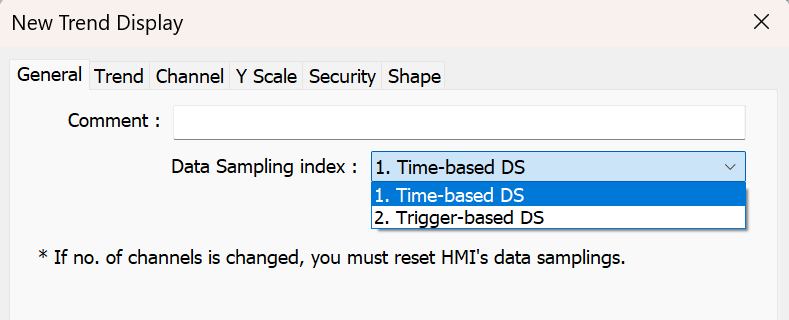
To link your time-based Data Sampling object to a Trend Display, open the General tab of the Trend Display and select the appropriate Data Sampling index.
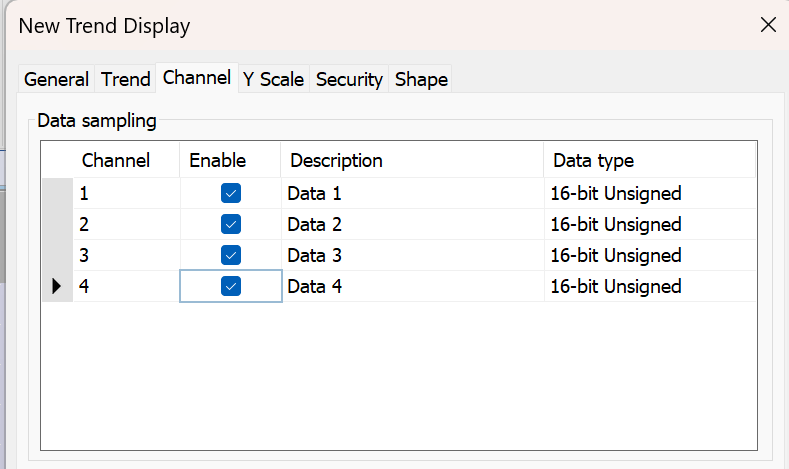
Then, under the Channel tab, enable the channels from the time-based DS object that you want to display:
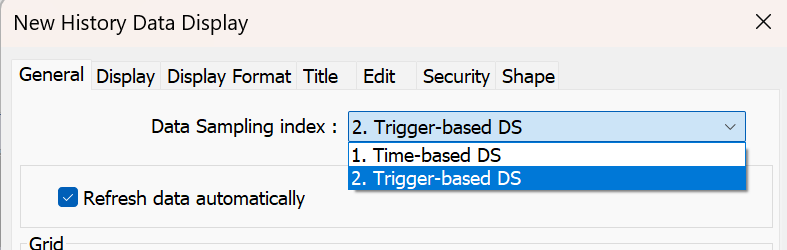
To create a new History Data Display using the Trigger-based DS object, select the Data Sampling index from the drop-down within the General tab, and then enable the channels you would like to display in the Display Format tab.
To analyze the data in Excel, we recommend using a Backup object to save the logged Data Sampling data as a CSV file. The CSV file can then be opened directly in Excel for analysis. We also have a YouTube tutorial that walks through the setup process step by step: How to backup historical data as a csv within EB Pro..
Please let us know if you need any further clarification and we would be happy to assist.