- HMI Model: MT8072iP
- EasyBuilder Pro Version: latest
I am very new at this so my questions are quite basic. When setting up numeric object, the only “display format” option I see is “default”. The user manual describes adding “engineering units” to numeric values - eg “kg”, but this does not appear to be available with my Weintek model - am I correct?
So much (80%) of the user manual applies only to models “higher” than the -iP series. Is there a version of the manual that only describes the low-end HMI functionality?
Hi @BrianF_NZ ,
Every question is a good question! We all start somewhere!
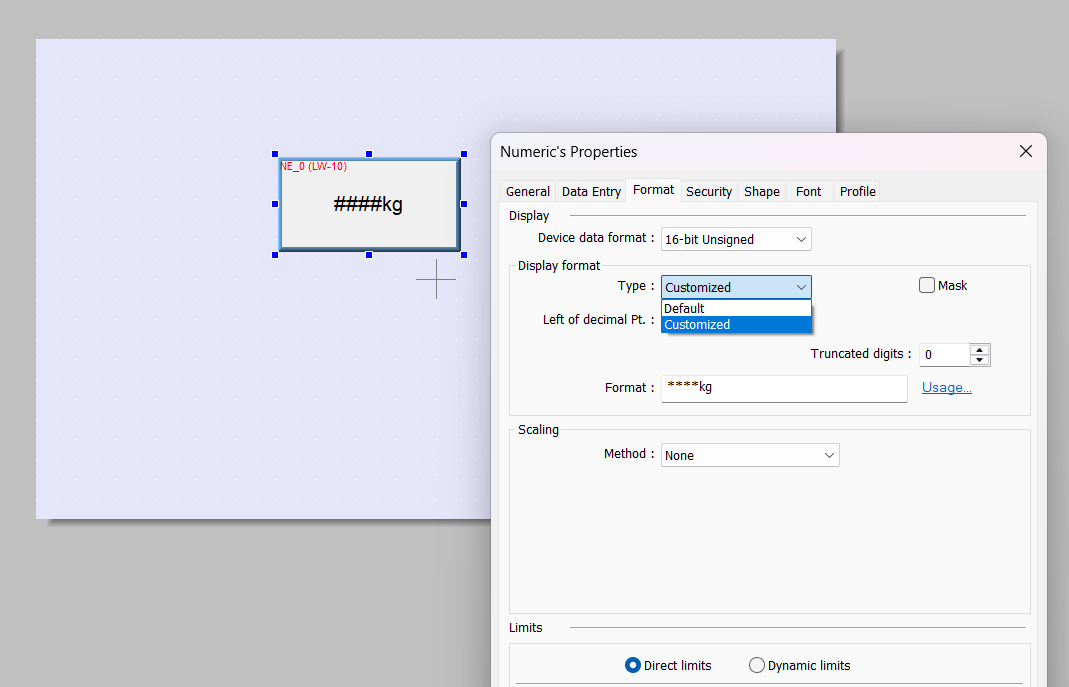
Under Display Format within the Numeric Object you should find an option within the drop down menu that says “Customized”. Each “*” sign represents each integer digit, and each “#” sign represents each fraction digit that will be displayed in the Numeric object. Apart from “*” signs, extra texts can be entered in the [Format] field as well to specify the engineering unit that best suits your project.
You can find more information about this object in section 13-49 of the EBPro User Manual . We don’t have a manual that only describes low-end functionality, however at the end of each section you can find notes regarding what HMI models a feature may exclusively belong to. Hope this helps!
Thanks for your response.
I am linking numeric objects to my attached PLC using the BACnet/IP driver.
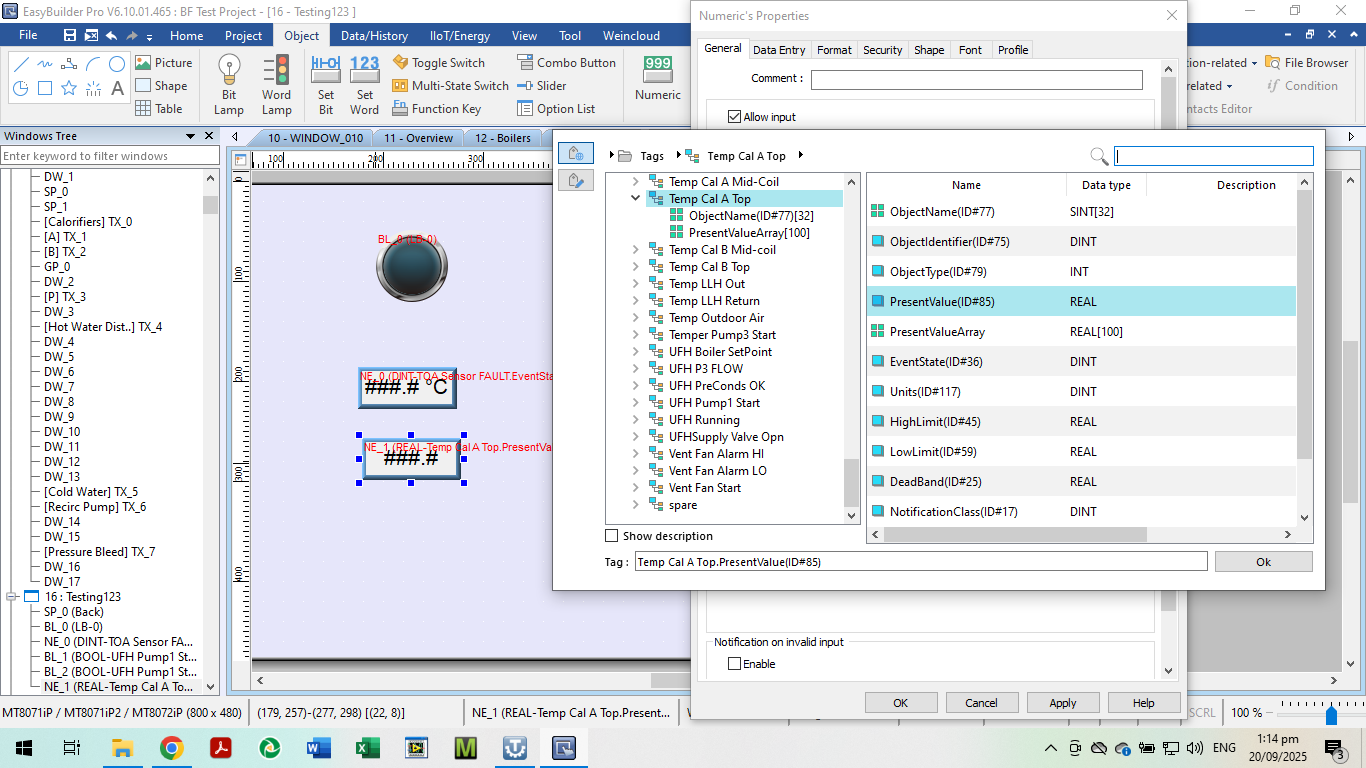
When I attach a BACnet object (say a temperature sensor) I select the desired object from the Tag list, and then select the required property ie ID#85:present value.
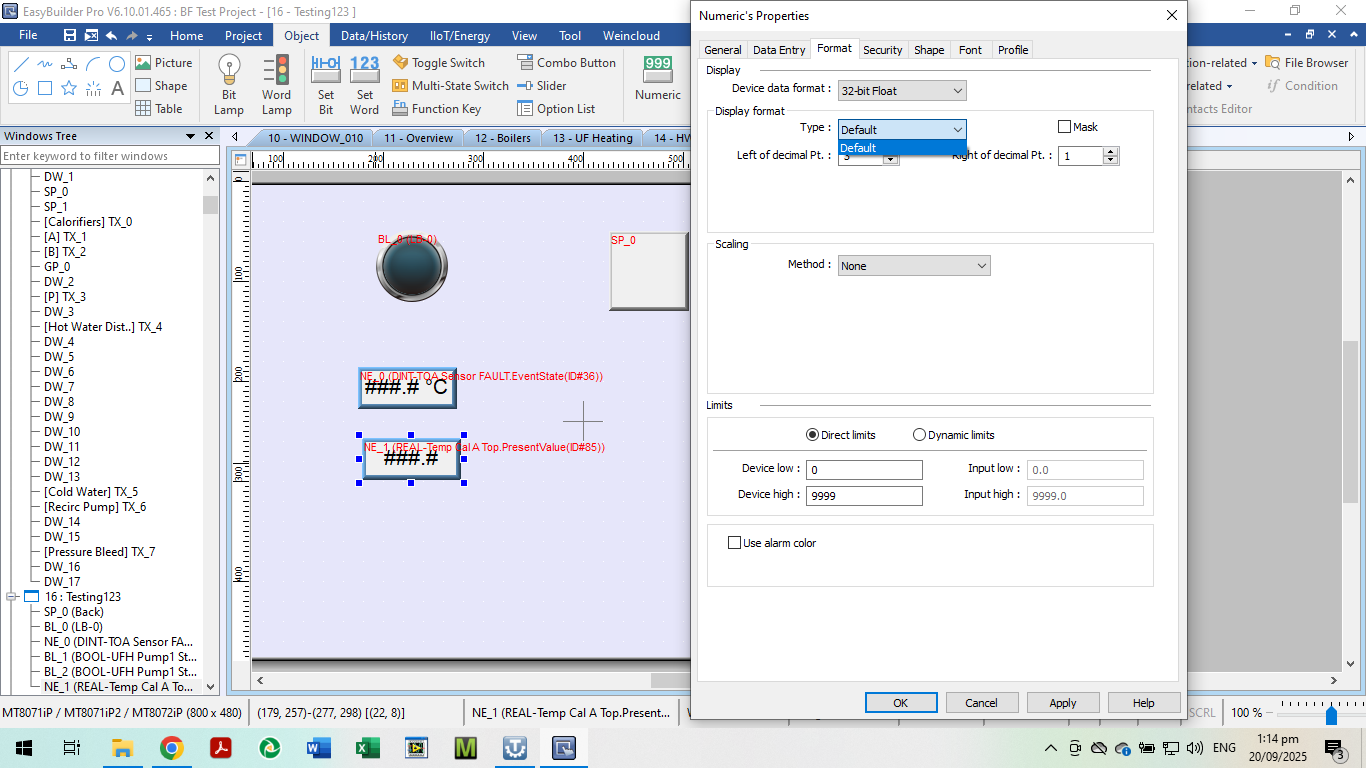
In the Numeric Properties (Attributes) > Format Tab > Display I see…
Device Data Format - auto-fills 32bit Float (will not accept other entries)
Display Format - only shows the “default” option in the pull-down. There is NO “customise” option available.
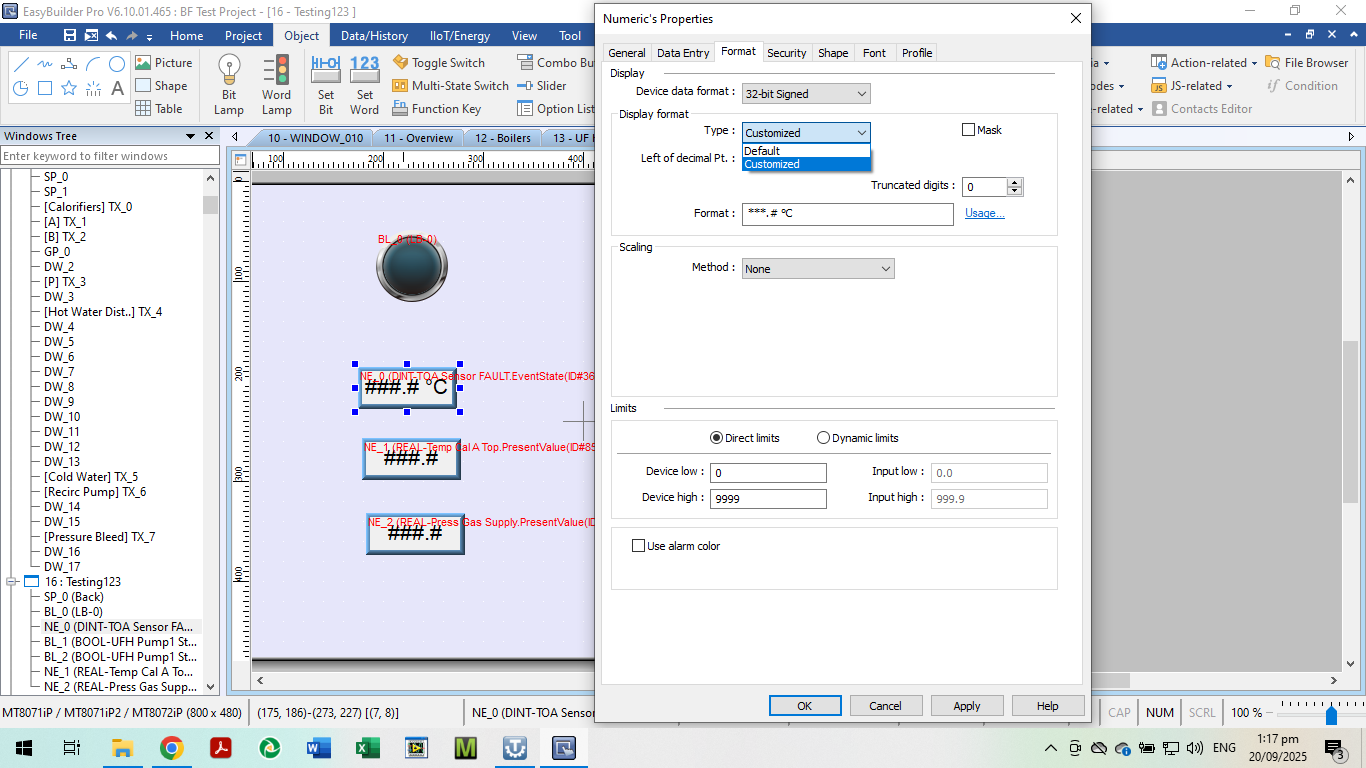
If I select a different property - eg ID#117 Units, THEN the “customise” option appears in display format (data type is then 32-bit Signed) .
How can I access the “customise” option for ID#85 current value??
Below are 2 screenshots showing the Tag/Property selection and Format windows described above.
Hi @BrianF_NZ
This is due to a limitation with legacy variants like the iP series. When using a tag with a “REAL” data type on the iP series, the customized option is only available for cMT X HMIs.
A work around could be to link the REAL tag through a macro, scale/round as needed and then display the LW with a customized format using an ASCII Object. I’m not certain what your application may be, but here is a general example of a macro below.
float f_custom
char c_custom[10] = " "
char type[4] = " PSI"
GetData(f_custom…
FLOAT2ASCII(f_custom, c_custom[0], 5)
StringCat(type[0], c_custom[0])
SetData(c_custom[0]…
My simple solution is to add a static text object (stating units) alongside the numeric object. If I remove the shape from the numeric object there is no obscuring frame between numbers and unit.
@BrianF_NZ ,
You can definitely do that. Whatever suits your project needs the best, is the best solution!