Hello,
From my experience, this error is usually not related to network communication, even when the HMI responds to ping.
Ping only confirms IP connectivity.
It does not validate:
compatibility between the project model and the actual hardware
firmware compatibility
whether EasyBuilder recognizes the device as a valid download target
For this reason, it is possible to successfully ping the HMI and still receive the error
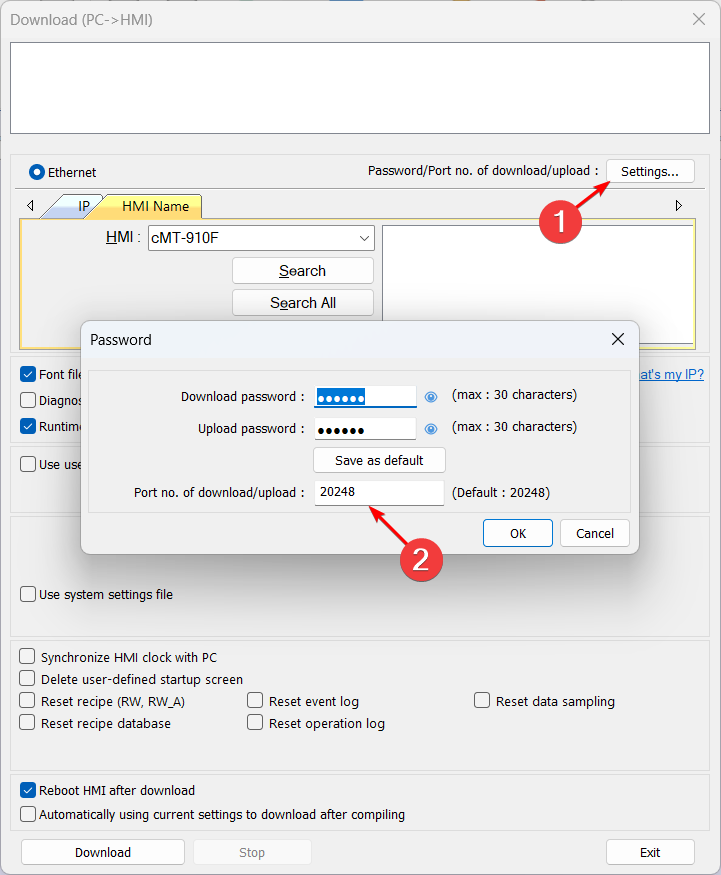
“please select the correct HMI model” during download.
In most cases, the issue is related to the HMI model configured in the project.
In EasyBuilder Pro:
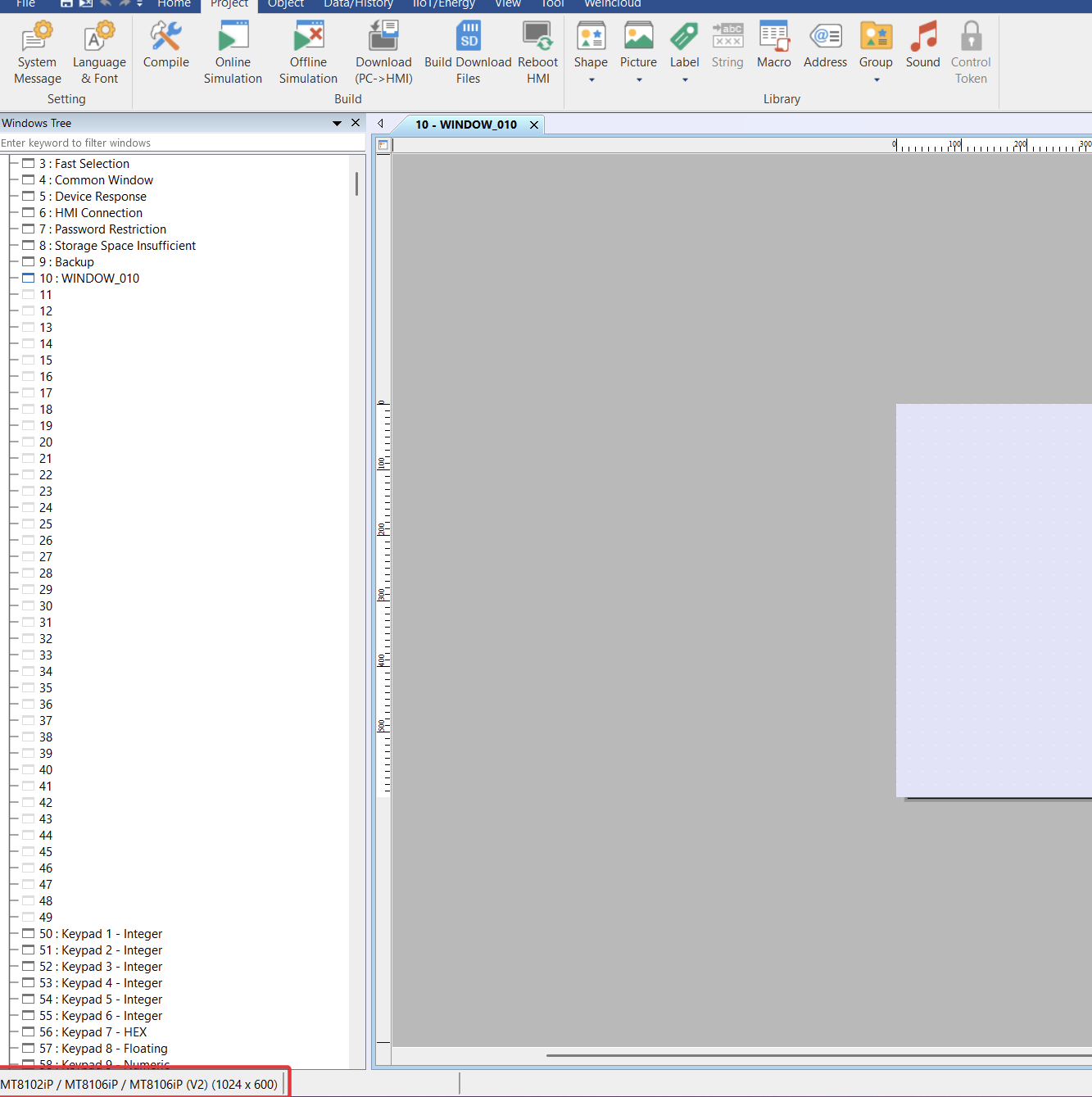
Go to System Parameters → Model
Verify that the selected model is MT8102iP
(pay close attention to the iP suffix, as very similar models are not interchangeable)
If the project was created from a different model, adjust it accordingly and try downloading again
If the issue persists, also check:
whether MT8102iP is supported by the EasyBuilder Pro version in use
the HMI firmware version
updating EasyBuilder Pro to the latest version, if needed
Hope this helps.
I’m not sure why I can’t add a photo to this post…
I have uploaded two photos and the program files to WeTransfer. You can access them using the link below:
It seems that the model number is the same.
The project was created with an older version of EasyBuilder Pro. However, it is strange that I also tried downloading it using that same older version of EasyBuilder Pro, but it still doesn’t work.
Tried with other versions, doesnt work as well.
Link: ://we.tl/t-yZQspEvnbC , please add https at the front of the link if doesnt work. Since I am new I at this forum I cant attach link to the post as well…
A foolproof alternative (always worked) A simple and reliable alternative is to use a fixed link-local IP, with a direct PC ↔ HMI connection: Physical connection Use only a common Ethernet cable (PC directly to the HMI). No switch or crossover cable is needed. On the PC (network card) fixed IP: IP: 169.254.187.200 Mask: 255.255.255.0 On the HMI (directly on the HMI screen, not in System Parameter): IP: 169.254.187.202 Mask: 255.255.255.0 At the time of download, specify the destination as: IP 169.254.187.202 Important notes: Configure the HMI IP on the screen itself, not in System Parameter. Communication works with a standard Ethernet cable, a direct PC ↔ HMI connection. This avoids conflicts with DHCP, firewalls, or corporate networks. This approach is simple, straightforward, and foolproof—and in practice, it has always worked. I hope this helps.