I have a MT8072iP HMI which I monitor using Easy Access2.0 via VNC. I only use EA2 for remote viewing of my HMI. I do all editing downloads from a local PC connected to HMI.
For the first time since I first started using EasyAccess2.0 about 6 months ago I have just reached the 3GB data limit and thus speed restriction. I am surprised because I did not think I had used EA2.0 more this month than previous months. I have some questions:
- I assume the data is “consumed” by the constant refreshing of HMI data to the remote screen.
- Does the data keep being used even if the HMI itself is in screensaver mode?
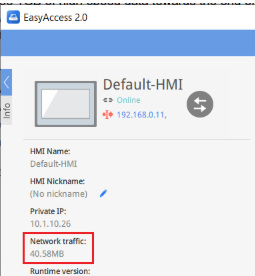
- How can I assess (measure, get a report on, estimate) the data transfer used for screen refreshing? I found Network Traffic .
- When does standard allocation of 3GB/month roll-over - at the calendar month end? or on the day of the month that the account was first activated?
- If I buy a top-up card, (say 5MB option) - is that 5GB spread over several months until it is used up, pr is that 5GB extra per month? It is not clear from what I read.
I have been in the habit of setting up the remote view of HMI and leaving it semi-active in the background for long periods. Is this what will have used the data? To stop this, do I need to close the EA2 application? not just the HMI screen via VNC?
Thank you
Hi @BrianF_NZ ,
Thank you for your question! The most likely cause is leaving the VNC session connected for long periods of time, since VNC is continuously transferring the HMI graphics to the remote screen. This continues even when the HMI is in screen saver mode, so the connection can still use data as long as it’s active.
The best way to minimize data usage is to disconnect the remote session when you are not actively monitoring the HMI. Closing the EA2.0/VNC session completely should help with the data usage issue.
The standard 3 GB data allowance resets on the first day of every month. If you need more data before then, you can contact your supplier to purchase a data top-up card. The additional data is valid for one year from the date it’s added to your account. You can find more information here: link.
Regarding monitoring data usage, the Network Traffic information can provide an indication of the amount of free data remaining.
Please let us know if we can provide any further information!
Thank for the information. I will limit my sessions more carefully.
This HMI is accessible by a few other users. Is it possible to check at any time who is “logged in” to the HMI via EasyAccess2.0? If so, how?
Hi @BrianF_NZ ,
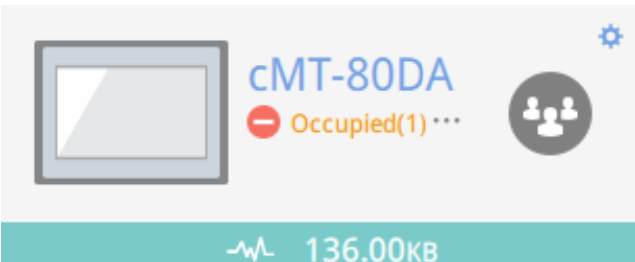
It is possible to check who is currently connected to the HMI through EasyAccess 2.0. If there are multiple users connected, click “Occupied (N)” under the HMI name in EasyAccess. This should display a list of all users who are currently connected.
Note: This feature is available on EasyAccess 2.0 app version to 2.9 or later.
For more details about multiple-user connections in EasyAccess 2.0, you can also take a look at this article: Multiple Users Connection | Weincloud Support.
Could I just check so I understand properly….
When I open the app (phone or PC) and press the “arrows” button, I then get a screen with a VNC button.
Does this screen start using data, or is it after I press the VNC button and actually see the HMI screen with its data refreshing?
Thank you
Hi @BrianF_NZ
That’s correct. As soon as you connect or log in to the HMI through EasyAccess 2.0, there will be a small amount of data transferred to establish the connection.
Once you start using a service such as VNC, cMT Viewer, WebView, EasyWeb 2.0, project uploads/downloads, or Pass-through, additional data will be used while those services are active. In the case of VNC, the amount of data used depends on how long the session stays connected and how much the HMI screen is changing, since the display is continuously being updated on the remote device.
Thank you. Again, so I am clear on this as a sensible strategy…
I can/should open EA2 and connect to HMI with little data load, and then wait with the VNC button available until I need to see the HMI, click on VNC to access the HMI, see what I need, then close back to the VNC button.
Hi @BrianF_NZ
Yes, that is correct. The simplest approach is to log in to EasyAccess 2.0 when you need to view the HMI and log out when you’re finished. That way, all data transfer stops once the EasyAccess session is disconnected, even if the VNC Viewer window is still open on your device.
This is the best way to minimize your monthly data usage while still being able to access the HMI whenever you need it.