I feel like this should be a fairly trivial thing, and it seems like I have done it before, but right now I am stumped.
I need to log the INT value of 9 counters from the PLC to a CSV file with a custom name on an inserted USB disk. The PLC has a STRING tag that contains lot info that needs to be the name of the file, and within the file I need to log the 9 counter values with either a comment or variable name so that it is obvious which number is which counter.
This is can certainly be done in our software. To accomplish this, I would recommend that you transfer these counter variables to a PLC array if you haven’t already and then set up a data sampling object to record each array element.
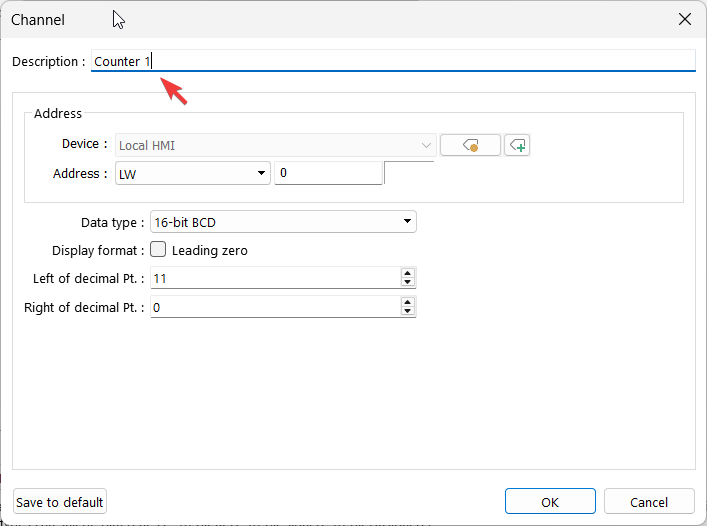
When setting up data sampling object configure a descriptive name for each channel as this will serve as the comment:
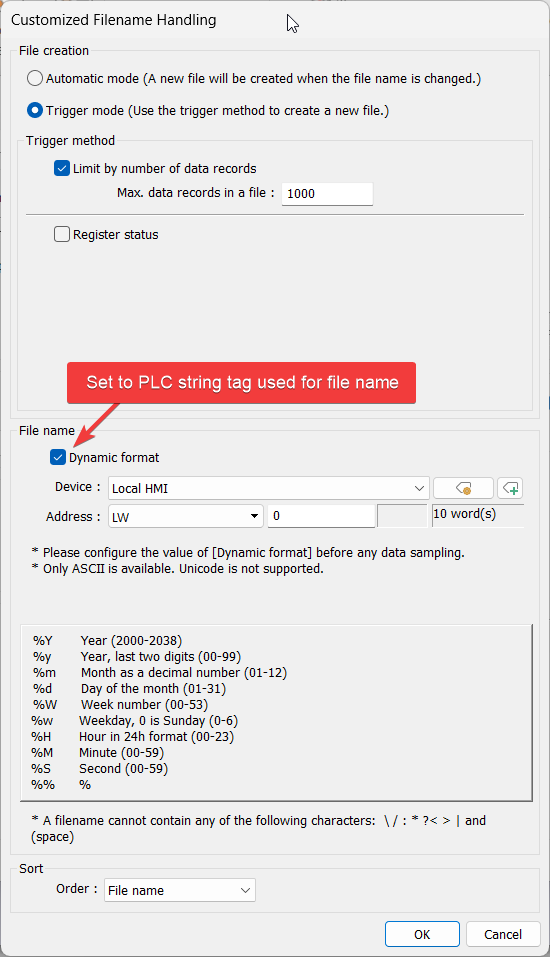
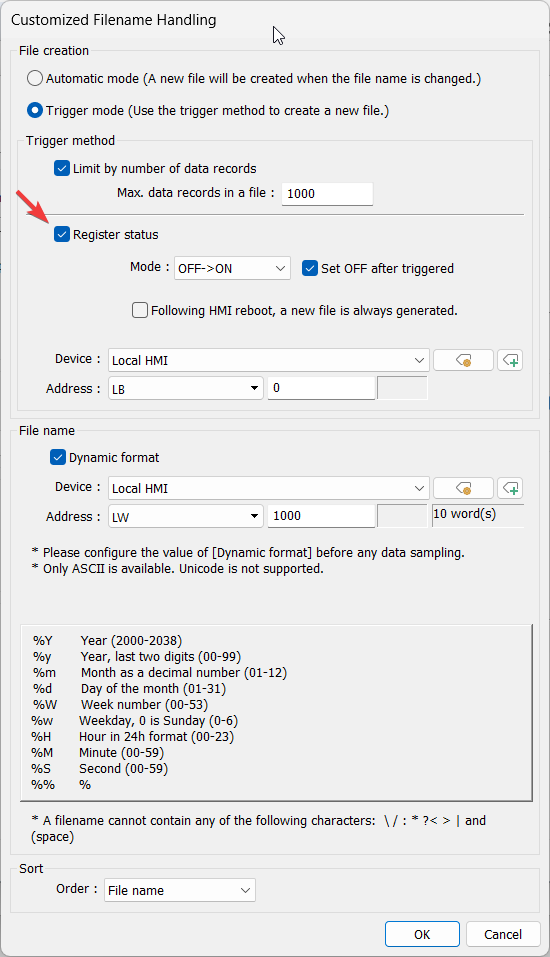
Thanks for the reply. That gets me close; but the file name isn’t working. Even with dynamic format selected the file name is whatever I enter into the “folder name” text box on the sampling setup screen.
I am using a Rockwell PLC and looking at a string tag in the PLC, could that be causing an issue?
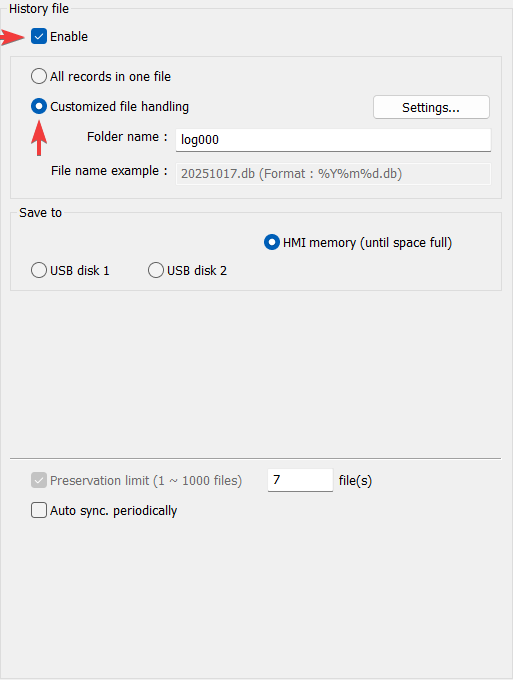
New issue I have, is how can I make the system create a new file when the file name changes? Right now, it just continues to log everything into the same file.
This seems to be one file name behind for some reason. When I change the file name and do a backup, it generates a file with the previous name. It will not create a file with the current name.
The backup method will export a .csv instance of the most recent files. When you create a new file, that file will be used for the current data logging until you activate the “Register status” to trigger the creation of a new file.
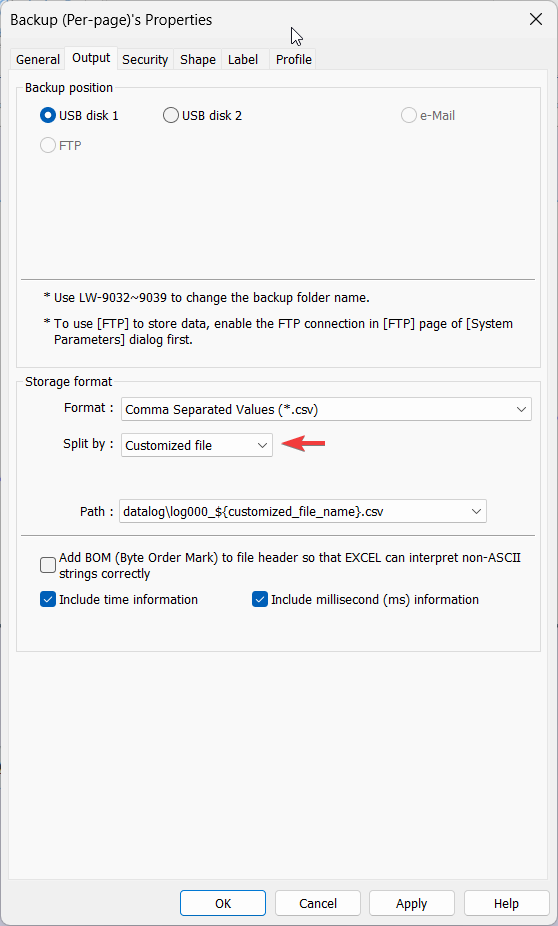
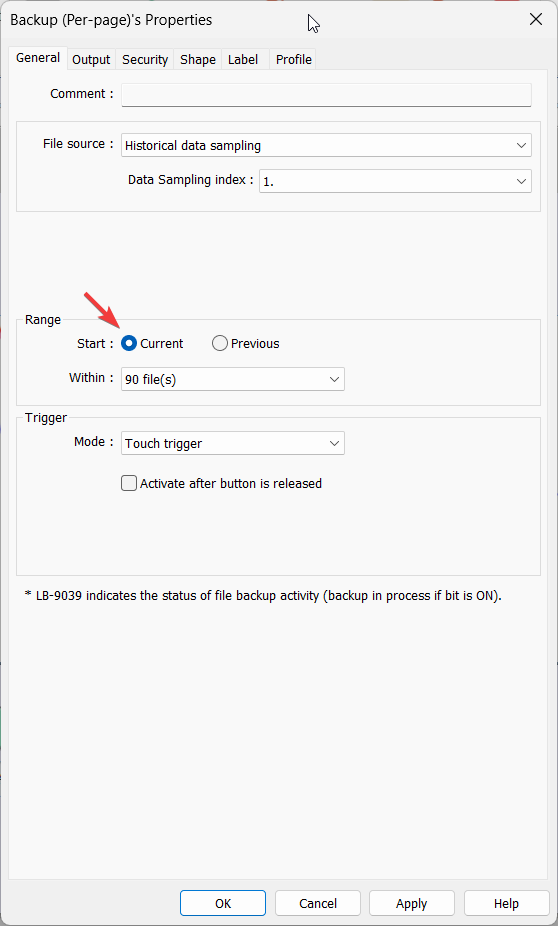
Do you have “Current” selected within your backup object’s settings?
Starting from scratch. if my file name is “ABC” then I can trigger a data log, then trigger a backup, and no CSV file will be on the drive. If I change the file name to “123”, trigger a log, then trigger a backup, then I get a CSV file named “ABC” with the previous log data.
It is like it is functioning as if I selected previous instead of current.
Can you please confirm what EasyBuilder Pro version you are using? In addition, can you please test this project using the latest version of EasyBuilder Pro and let me know if you experience the same issue: Link
So I tested the project you sent as an online simulation and it worked. So I went back and deleted my logging and backup objects and recreated them to match the sample project, and they worked as an online simulation. When I download the project to the HMI and then FTP to the USB drive though it is right back to the previous state of always being a file name/data set behind.
Some more info I have discovered, it would appear that once I perform a backup, that is it. The data for that file name stops being logged and I cannot see any new data in a backup until I change file names. Once I backup that file it stops logging again.
This is what I am seeing on the actual HMI; simulations seem to work as expected.
Edit: maybe it is an FTP issue, because when I pull the USB drive the file seems to be correct.
I believe everything is working, the FTP is just not updating the files as expected, but when I pull the USB drive and look at the files they are correct.
I have had a similar experience while using Windows File Explorer for FTP. To solve this, I’ve switched to a dedicated FTP client application. If you’re using Windows File Explorer, I’d recommend that you try using an FTP client like FileZilla instead.