Introduction:
This guide explains how to use JavaScript (JS) objects in EasyBuilder Pro to interact with API services and manage data. For this demonstration, we will use the OMDB API, which allows us to retrieve information about a specified movie title.
Warning
JS objects provide powerful customization features, but misusing them can result in system error or performance degradation. Please use JS objects carefully.
Software Version:
The JS Object is exclusive to cMT-X series HMIs
EasyBuilder Pro 6.05.01+
Related Tutorials:
How to transfer device data using the JS object
JS Action/Object SDK Documentation
Instructions
- To start the project, you need to add a JavaScript (JS) file to the
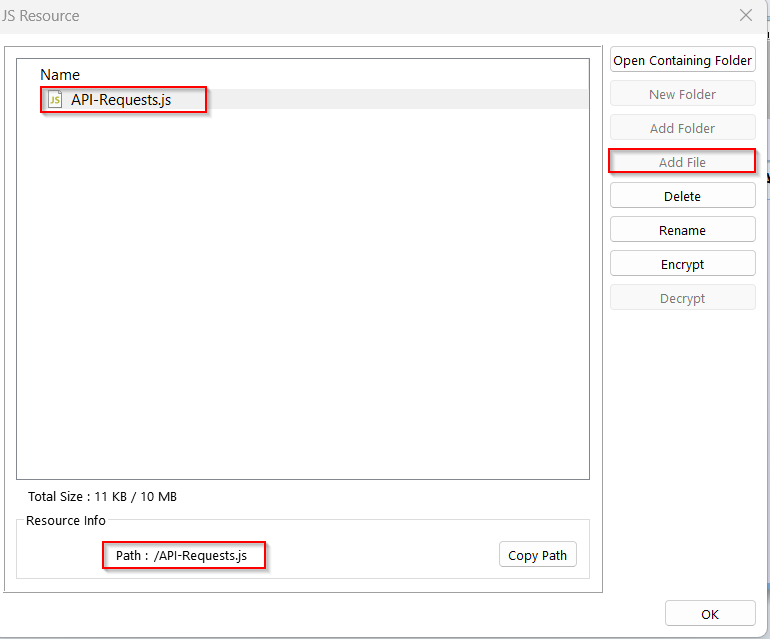
JS Resource. To access theJS Resource, go to theObjecttab, and under theJS-Relatedsection, selectJS Resource.
- In the
JS Resource, click onAdd Fileand upload the provided JS file below. This file contains functionality for performing API requests such as POST, GET, and DELETE. Additionally, copy theResource Info, as it will be needed later to specify the file path in our JavaScript script.

// Changelogs:
// 0.0.3 (2022-08-05):
// - Added methods for PUT, PATCH, DELETE
// - Move shared codes into _perform_single_easy
// 0.0.2:
// - Set onmessage to null to release unused web connections
// 0.0.1:
// - First release

var request = {
    post: requestPost,
    get: requestGet,
    put: requestPut,
    patch: requestPatch,
    delete: requestDelete,
    version: "0.0.3",
};

/**
 * Make HTTP GET request
 * @param {Object}   opt                - options for get request. example: `{url: 'http://www.google.com'}`
 * @param {string}   opt.url            - target url
 * @param {string}   opt.useragent      - useragent to use in the header
 * @param {Boolean}  opt.followlocation - follow redirect responses
 * @param {Array.Object} opt.header     - headers to use in the request. example: `{"Content-Type": "application/json"}`
 * @param {function(string,object,string)} cb - callback for any results. example: `function (error, info, body) {}`
 */
function requestGet(opt, cb) {
    var easy = new net.Curl.Easy();
    var data = opt.data || {};

    // retrieve url from options and combine existing query string with current data
    // find existing query string
    var qsPos = opt.url.indexOf('?');
    // combine existing query string with current data
    // for example, url is "http://localhost:8080/q?a=1&b=2" and data is {"a":100,"b":2,"c":3}.
    // they will be combined as "http://localhost:8080/q?a=100&b=2&c=3"
    if (qsPos > -1) {
        var dataInUrl = QueryString.parse(opt.url.substring(qsPos + 1));
        // existing data has higher precedence than ones in url
        Object.assign(dataInUrl, data);
        // reassign to data
        data = dataInUrl
        // cleanup url
        opt.url = opt.url.substring(0, qsPos);
    }
    var qs = QueryString.stringify(data);
    if (qs.length > 0) {
        opt.url += "?" + QueryString.stringify(data);
    }

    easy.setOpt(net.Curl.Easy.option.HTTPGET, true);
    _perform_single_easy(easy, opt, cb)
}

/**
 * Make HTTP POST request
 * @param {Object}   opt                - options for get request. example: `{url: 'http://www.google.com'}`
 * @param {string}   opt.url            - target url
 * @param {string}   opt.useragent      - useragent to use in the header
 * @param {Boolean}  opt.followlocation - follow redirect responses
 * @param {Array.Object} opt.header     - headers to use in the request. example: `{"Content-Type": "application/json"}`
 * @param {Object}   opt.form           - form to use in the request. example: `{"key": "value"}`
 * @param {String}   opt.data           - string to send as the request body. example: `"{\"value\":10,\"ts\":\"2020-12-10T00:00:00Z\"}"`. This overwrites opt.form.
 * @param {function(string,object,string)} cb - callback for any results. example: `function (error, info, body) {}`
 */
function requestPost(opt, cb) {
    _perform_single_easy_with_body(opt, cb)
}

function requestPut(opt, cb) {
    opt.customrequest = "PUT";
    _perform_single_easy_with_body(opt, cb)
}

function requestPatch(opt, cb) {
    opt.customrequest = "PATCH";
    _perform_single_easy_with_body(opt, cb)
}

function requestDelete(opt, cb) {
    opt.customrequest = "DELETE";
    _perform_single_easy_with_body(opt, cb)
}

function _perform_single_easy_with_body(opt, cb) {
    var easy = new net.Curl.Easy();

    // set the customerequest option (PUT/PATCH/DELETE)
    if (opt.customrequest !== undefined) {
        easy.setOpt(net.Curl.Easy.option.CUSTOMREQUEST, opt.customrequest);
    }

    // put/patch/delete may or may not contain body
    var requestBody = null;
    if (opt.data !== undefined) {
        requestBody = opt.data;
    } else if (opt.form !== undefined) {
        requestBody = QueryString.stringify(opt.form);
    }
    if (requestBody !== null) {
        easy.setOpt(net.Curl.Easy.option.POSTFIELDS, requestBody);
    }

    _perform_single_easy(easy, opt, cb)
}

function _perform_single_easy(easy, opt, cb) {
    const decoder = new TextDecoder('utf-8');

    var url = opt.url || "";
    // url may contain spaces or \0. use polyfilled trim() and remove \0 too
    url = url.replace(/^[\s\uFEFF\xA0\0]+|[\s\uFEFF\xA0\0]+$/g, "");
    easy.setOpt(net.Curl.Easy.option.URL, url);

    if (typeof cb !== 'function') {
        return;
    }
    var responseData = "";
    var useragent = opt.useragent || "curl/7";
    // If it is a 300 response, follow the redirection
    var followLocation = opt.followlocation || true;
    // On HMI we do not have CA root certificate chains, so we will not verify the certificate
    var sslVerifypeer = opt.ssl_verifypeer || false;


    // If it is a 300 response, follow the redirection
    easy.setOpt(net.Curl.Easy.option.FOLLOWLOCATION, followLocation);
    easy.setOpt(net.Curl.Easy.option.USERAGENT, useragent);
    // On HMI we do not have CA root certificate chains, so we will not verify the certificate
    easy.setOpt(net.Curl.Easy.option.SSL_VERIFYPEER, sslVerifypeer);
    if (opt.header) {
        var headerList = [];
        for (var key in opt.header) {
            headerList.push(key + ": " + opt.header[key]);
        }
        easy.setOpt(net.Curl.Easy.option.HTTPHEADER, headerList);
    }

    easy.setOpt(net.Curl.Easy.option.WRITEFUNCTION, function (buf) {
        var resp = decoder.decode(buf);
        responseData += resp;
    });

    var multi = new net.Curl.Multi();
    multi.onMessage((easyHandle, result) => {
        var error = net.Curl.Easy.strError(result);
        var info = {
            href: easyHandle.getInfo(net.Curl.info.EFFECTIVE_URL),
            statusCode: easyHandle.getInfo(net.Curl.info.RESPONSE_CODE),
            totalTime: easyHandle.getInfo(net.Curl.info.TOTAL_TIME),
            connectTime: easyHandle.getInfo(net.Curl.info.CONNECT_TIME),
            contentType: easyHandle.getInfo(net.Curl.info.CONTENT_TYPE),
            localIP: easyHandle.getInfo(net.Curl.info.LOCAL_IP),
            localPort: easyHandle.getInfo(net.Curl.info.LOCAL_PORT),
            requestSize: easyHandle.getInfo(net.Curl.info.REQUEST_SIZE),
        };
        var body = responseData;
        multi.removeHandle(easyHandle);
        multi.onMessage(null);
        cb(error, info, body);
    });

    multi.addHandle(easy);
    return;
}

// QueryString modified from https://github.com/nodejs/node/blob/3bdcbdb1a085b35a3a50112a51781b31d8814294/lib/querystring.js
const QueryString = { unescape: qsUnescape, escape: qsEscape, stringify: stringify, encode: stringify, parse: parse, decode: parse }; function ParsedQueryString() { } function qsUnescape(e) { return decodeURIComponent(e) } ParsedQueryString.prototype = Object.create(null); const hexTable = []; for (var i = 0; i < 256; ++i)hexTable[i] = "%" + ((i < 16 ? "0" : "") + i.toString(16)).toUpperCase(); const noEscape = [0, 0, 0, 0, 0, 0, 0, 0, 0, 0, 0, 0, 0, 0, 0, 0, 0, 0, 0, 0, 0, 0, 0, 0, 0, 0, 0, 0, 0, 0, 0, 0, 0, 1, 0, 0, 0, 0, 0, 1, 1, 1, 1, 0, 0, 1, 1, 0, 1, 1, 1, 1, 1, 1, 1, 1, 1, 1, 0, 0, 0, 0, 0, 0, 0, 1, 1, 1, 1, 1, 1, 1, 1, 1, 1, 1, 1, 1, 1, 1, 1, 1, 1, 1, 1, 1, 1, 1, 1, 1, 1, 0, 0, 0, 0, 1, 0, 1, 1, 1, 1, 1, 1, 1, 1, 1, 1, 1, 1, 1, 1, 1, 1, 1, 1, 1, 1, 1, 1, 1, 1, 1, 1, 0, 0, 0, 1, 0]; function qsEscape(e) { "string" != typeof e && ("object" == typeof e ? e = String(e) : e += ""); for (var t = "", n = 0, r = 0; r < e.length; ++r) { var i = e.charCodeAt(r); if (i < 128) { if (1 === noEscape[i]) continue; n < r && (t += e.slice(n, r)), n = r + 1, t += hexTable[i] } else if (n < r && (t += e.slice(n, r)), i < 2048) n = r + 1, t += hexTable[192 | i >> 6] + hexTable[128 | 63 & i]; else if (i < 55296 || i >= 57344) n = r + 1, t += hexTable[224 | i >> 12] + hexTable[128 | i >> 6 & 63] + hexTable[128 | 63 & i]; else { var o; if (!(++r < e.length)) throw new URIError("URI malformed"); o = 1023 & e.charCodeAt(r), n = r + 1, t += hexTable[240 | (i = 65536 + ((1023 & i) << 10 | o)) >> 18] + hexTable[128 | i >> 12 & 63] + hexTable[128 | i >> 6 & 63] + hexTable[128 | 63 & i] } } return 0 === n ? e : n < e.length ? t + e.slice(n) : t } function stringifyPrimitive(e) { return "string" == typeof e ? e : "number" == typeof e && isFinite(e) ? "" + e : "boolean" == typeof e ? e ? "true" : "false" : "" } function stringify(e, t, n, r) { t = t || "&", n = n || "="; var i = QueryString.escape; if (r && "function" == typeof r.encodeURIComponent && (i = r.encodeURIComponent), null !== e && "object" == typeof e) { for (var o = Object.keys(e), s = o.length, c = s - 1, a = "", f = 0; f < s; ++f) { var l = o[f], d = e[l], h = i(stringifyPrimitive(l)) + n; if (Array.isArray(d)) { for (var p = d.length, u = p - 1, g = 0; g < p; ++g)a += h + i(stringifyPrimitive(d[g])), g < u && (a += t); p && f < c && (a += t) } else a += h + i(stringifyPrimitive(d)), f < c && (a += t) } return a } return "" } function charCodes(e) { if (0 === e.length) return []; if (1 === e.length) return [e.charCodeAt(0)]; const t = []; for (var n = 0; n < e.length; ++n)t[t.length] = e.charCodeAt(n); return t } const defSepCodes = [38], defEqCodes = [61]; function parse(e, t, n, r) { const i = new ParsedQueryString; if ("string" != typeof e || 0 === e.length) return i; var o = t ? charCodes(t + "") : defSepCodes, s = n ? charCodes(n + "") : defEqCodes; const c = o.length, a = s.length; var f = 1e3; r && "number" == typeof r.maxKeys && (f = r.maxKeys > 0 ? r.maxKeys : -1); var l = QueryString.unescape; r && "function" == typeof r.decodeURIComponent && (l = r.decodeURIComponent); const d = l !== qsUnescape, h = []; for (var p = 0, u = 0, g = 0, y = "", b = "", C = d, v = d, x = 0, m = 0; m < e.length; ++m) { const t = e.charCodeAt(m); if (t !== o[u]) { if (u = 0, v || (37 === t ? x = 1 : x > 0 && (t >= 48 && t <= 57 || t >= 65 && t <= 70 || t >= 97 && t <= 102) ? 3 == ++x && (v = !0) : x = 0), g < a) { if (t === s[g]) { if (++g === a) { const t = m - g + 1; p < t && (y += e.slice(p, t)), x = 0, p = m + 1 } continue } g = 0, C || (37 === t ? x = 1 : x > 0 && (t >= 48 && t <= 57 || t >= 65 && t <= 70 || t >= 97 && t <= 102) ? 3 == ++x && (C = !0) : x = 0) } 43 === t && (g < a ? (p < m && (y += e.slice(p, m)), y += "%20", C = !0) : (p < m && (b += e.slice(p, m)), b += "%20", v = !0), p = m + 1) } else if (++u === c) { const t = m - u + 1; if (g < a ? p < t && (y += e.slice(p, t)) : p < t && (b += e.slice(p, t)), C && (y = decodeStr(y, l)), v && (b = decodeStr(b, l)), -1 === h.indexOf(y)) i[y] = b, h[h.length] = y; else { const e = i[y]; e.pop ? e[e.length] = b : i[y] = [e, b] } if (0 == --f) break; C = v = d, x = 0, y = b = "", p = m + 1, u = g = 0 } } if (0 !== f && (p < e.length || g > 0)) if (p < e.length && (g < a ? y += e.slice(p) : u < c && (b += e.slice(p))), C && (y = decodeStr(y, l)), v && (b = decodeStr(b, l)), -1 === h.indexOf(y)) i[y] = b, h[h.length] = y; else { const e = i[y]; e.pop ? e[e.length] = b : i[y] = [e, b] } return i } function decodeStr(e, t) { try { return t(e) } catch (t) { return QueryString.unescape(e, !0) } }

module.exports = request;
- Next, navigate back to the
JS-relatedattribute, and selectJS Object.
- Within the
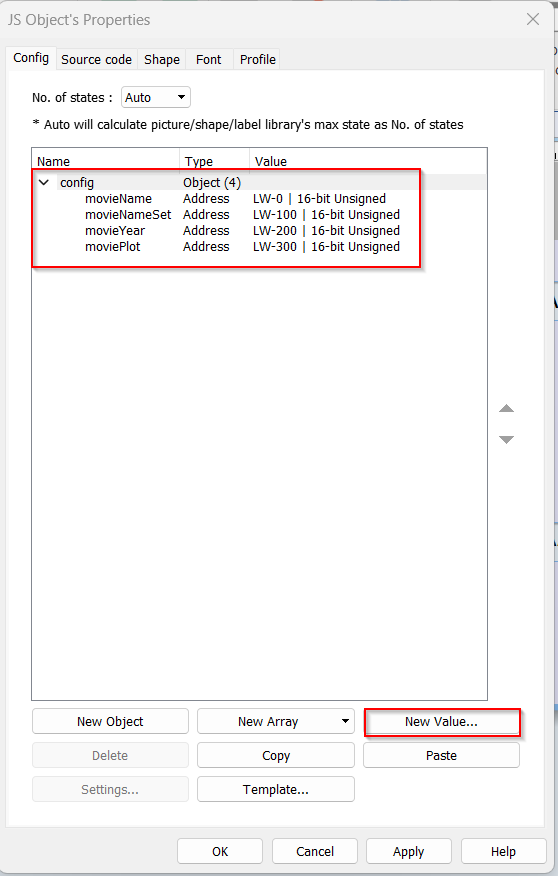
configtab we will set up our ASCII objects that we will create later on. Select theNew Valuebutton to create each object.
- When creating each
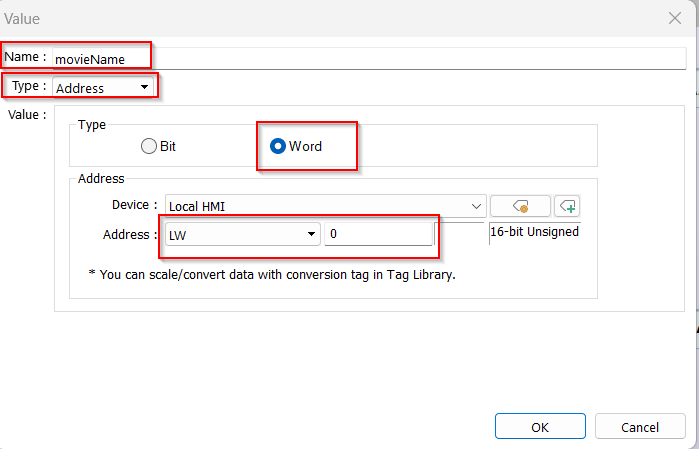
New ValueI enter in aName, theTypewill be aAddress,Value Typewill be set toWordas the demo will be dealing with string, andaddresswill be set to open address.
Same steps was repeated for all other variables shown above at open memory address.
- Next, navigate to the
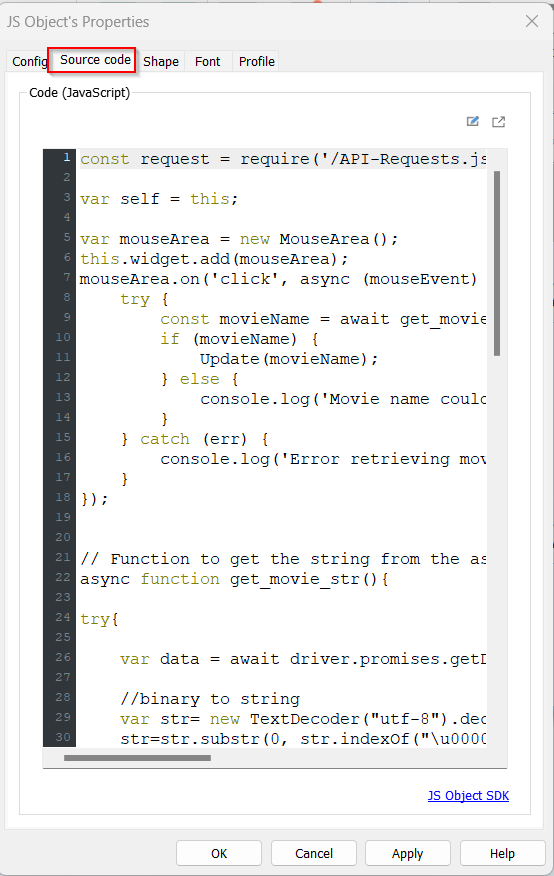
Source Codetab to begin implementing your code
- First we will start by adding the resource file we adding in earlier and set up a self variable to preserve our memory when changes occur.

const request = require('/API-Requests.js');

var self = this;
- Next, we will create a function to retrieve the movie name from the ASCII object. This function will be declared as
asyncbecause it needs to return a promise containing the movie name, which will be used in the subsequent function that relies on theawaitkeyword.
ATextDecoderwill be used to convert the binary data into a string, ensuring proper handling of any conversion errors. The entire implementation will be wrapped inside atry-catchblock to effectively monitor and handle any errors that may occur during the process.
// Function to get the string from the ascii object
async function get_movie_str(){

try{

    var data = await driver.promises.getData(self.config.movieName, 100); // Get the data from the ASCII object

    //binary to string conversion
    var str= new TextDecoder("utf-8").decode(data.buffer);
    str=str.substr(0, str.indexOf("\u0000"))

    return str;  // return the movie name

} catch (err) {
    console.log('Error:', err.message);
}
};
- Next, we will create the
Updatefunction. This function will perform aGETrequest to retrieve data for a specific movie passed as a parameter. Since this process involves asynchronous operations, the function will be declared asasyncto ensure all data is gathered before resolving the promise to update the relevant data fields via the callback function.
Inside thetryblock, we will use theGETrequest from the previously imported resource. TheGETrequest consists of two main components:
urlField: Contains the API endpoint URL.dataField: Includes the query parameters required for the request.
In this example, the query parameters include:apikey: A string representing the API key.t: The movie title, populated using the function’s parameter.
The request will invoke a callback function namedupdateFields, which will process the API response and handle any errors. This callback will be used to manipulate the retrieved data as needed.
// Function to run the API call with the movie name passed in
//example url: https://www.omdbapi.com/?t=movieName&apikey=dba4d21d
async function Update(movieName) {
    try {

        // Call to API to get the data
        request.get({
            url: 'https://www.omdbapi.com/', // API url base

            // Following API feilds
            data: {
                t: movieName,
                apikey: 'dba4d21d'
            }
        }, updateFeilds); // Callback function to update the feilds
    } catch (err) {
        console.log('Error:', err.message);
    }
}
10.Next, we will create the updateFields function, which will be invoked when the API request is completed. This function will take three parameters: error, response, and body. For this example, we will focus on the body, which contains the response data from the GET request.
Within a try-catch block, the body will be parsed into a JavaScript object using JSON.parse and stored in the payload variable. From the payload, we will extract specific attributes, such as the movie’s name, the year it was released, and the plot.
Since the movie plot is typically a long string, we will use the replace function to format it by adding line breaks (\n) for better readability when displayed on an ASCII object later.
Finally, we will use the setStringData function to insert these variables into the ASCII objects defined in the Config tab. The setStringData function takes three arguments:
- The location of the ASCII object, accessed using the
selfkeyword and the corresponding property within theconfigobject (e.g.,self.config.movieNameSet). - The maximum number of characters allowed for the ASCII object (set to 30 for this demo).
- The variable containing the data to be displayed in the ASCII object.
This function ensures that the extracted data is properly formatted and displayed in the corresponding ASCII objects.
*All attributes need to have seperatesetStringDataorsetDatafunctions.
function updateFeilds(error, response, body) {
    try {


        const payload = JSON.parse(body); //Prase the whole return of the API call

        // Get the needed attribute feilds
        var movieName = payload.Title;
        var movieYear = payload.Year;
        var moviePlot = payload.Plot;

        // Help the movie plot fit into box by putting in a new line every 50 characters
        moviePlot = moviePlot.replace(/(.{50})/g, "$1\n");


        // Set the data using driver methods
        // Puts the data within the ASCII objects
        driver.setStringData(self.config.movieNameSet, 30, movieName);
        driver.setStringData(self.config.movieYear, 10, movieYear);
        driver.setStringData(self.config.moviePlot, 160, moviePlot);

    } catch (parseError) {
        // Error catcher
        console.log('Error parsing API response:', parseError.message);
    }
}
- Lastly, we will set up the
MouseAreafunctionality in the JavaScript script. This enables the script to execute specific functions when the object is clicked. To create aMouseArea, start by defining a variable with thenew MouseArea()function. Then, add this widget to the project using thethiskeyword.
Next, an event handler function will be defined to process the sequence of events triggered when the JavaScript object is clicked. ThemouseArea.on()method will be used for this purpose. The first parameter ofmouseArea.on()is'click', indicating that the event sequence should only execute when the object is clicked. The event handler function will be declared asasyncto ensure the completion of promises, such as API calls, before proceeding.
Atry-catchblock will be implemented to handle any errors that may occur during execution. Inside thetryblock, theget_movie_strfunction will be called to retrieve the movie name provided by the user. If a movie name is entered in the ASCII object, theUpdatefunction will be executed with the movie name as its parameter to update the other ASCII objects. If no movie name is provided, an error message will be displayed.
// Creating the mouseArea
var mouseArea = new MouseArea();
this.widget.add(mouseArea);

// On click the functions will run
mouseArea.on('click', async (mouseEvent) => {
    try {
        const movieName = await get_movie_str(); // Await the result of get_movie_str
        if (movieName) {
            Update(movieName); // Run the Update function when the movie name gets put in
        } else {
            console.log('Movie name could not be retrieved.'); // return a error if empty string for movieName
        }
    } catch (err) {
        console.log('Error retrieving movie name:', err.message); // error message for a error with the API request.
    }
});
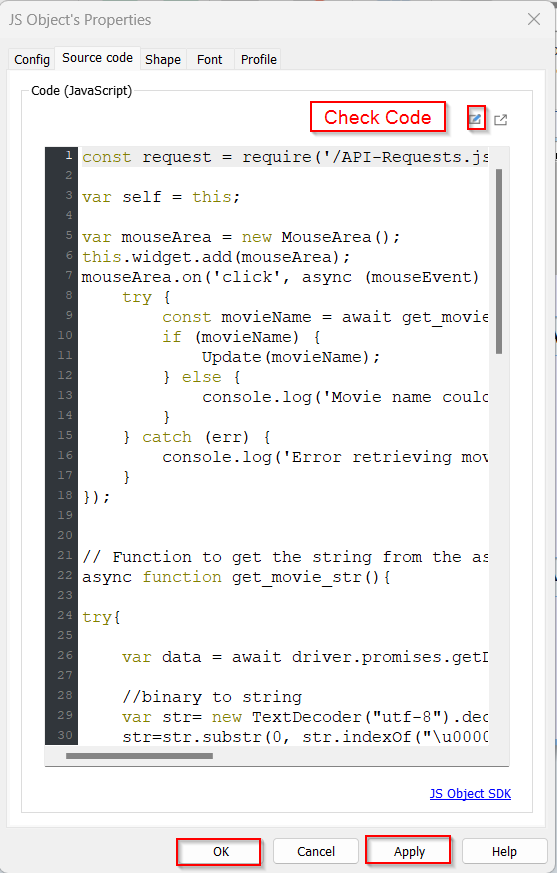
- After implementing the code, select the
Check Codebutton on the top right of the page. Then you can apply the code to the JS object using theApplybutton on the bottom right, and place JS object using theOKbutton
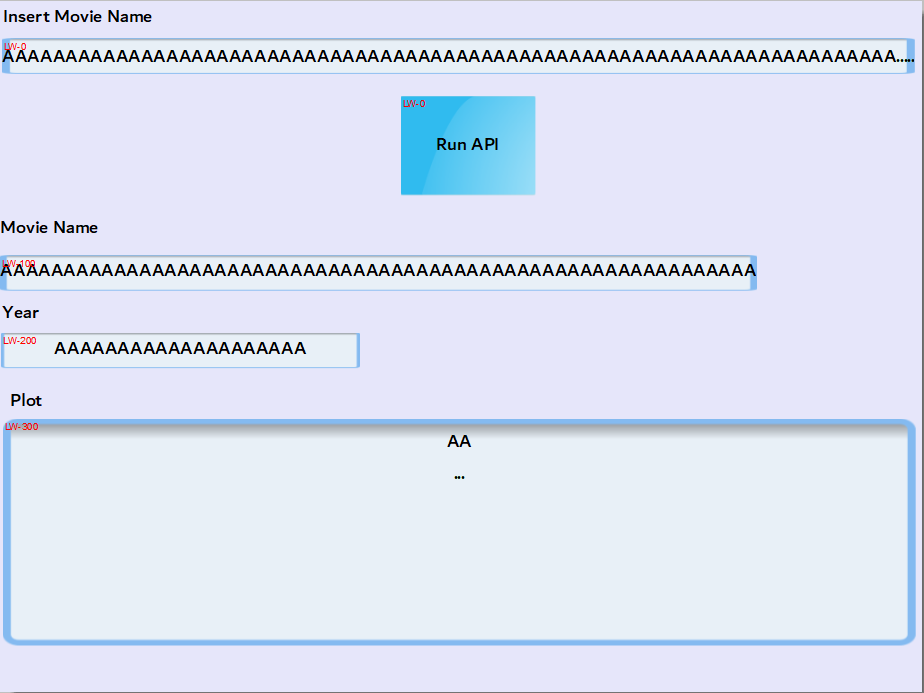
- Next we will set up the four ASCII objects that were used within the JS object. Within the
Objecttab select theASCIIobject.
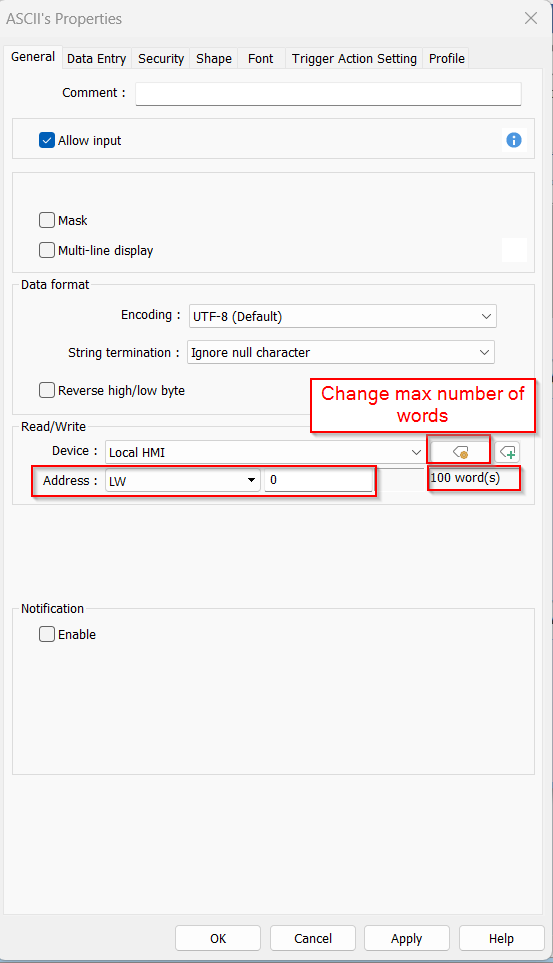
- Within the
Generaltab, ensure theAddressmatches up the configuration of the JS object and the memory address does not overlap with another memory address. Furthermore, manipulation of the max number of words per ASCII object using the yellow tag button.
- Place all of the critical ASCII object within your project with appropriate labels.
If large amount of text like the PLOT attribute use multi-line display found in within the General tab
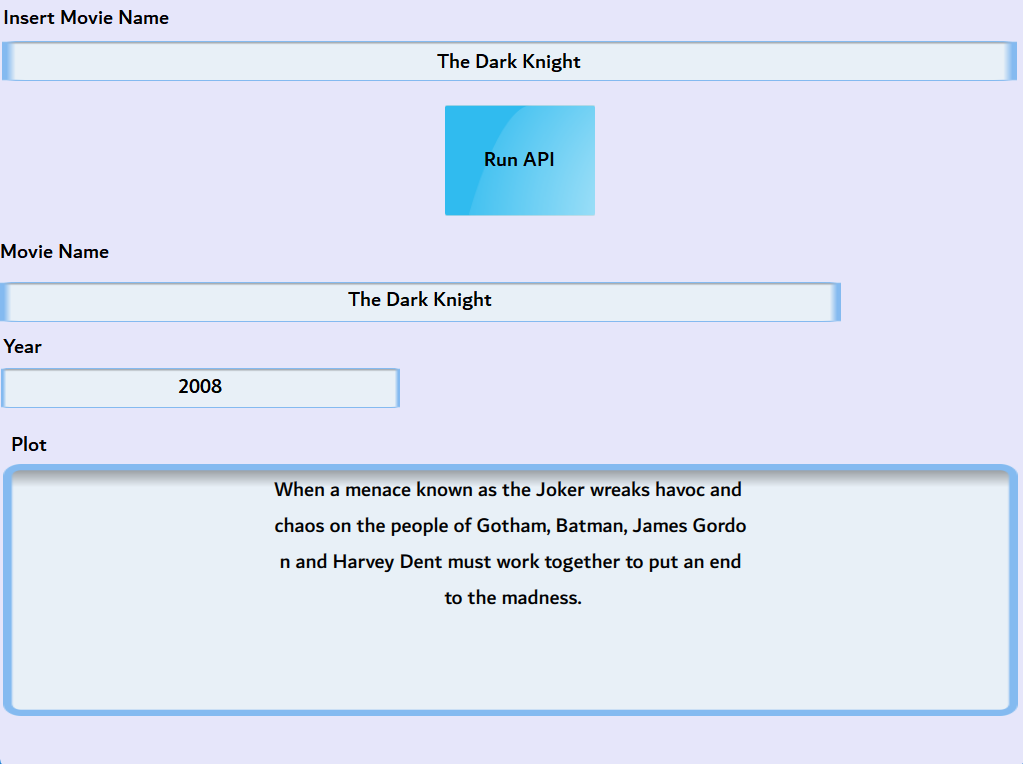
- To run a simulation navigate to the
Projecttab and selectOffline SimulationorOnline Simulatiuon.
DEMO Simulation


Full Code
const request = require('/API-Requests.js');

var self = this;

var mouseArea = new MouseArea();
this.widget.add(mouseArea);
mouseArea.on('click', async (mouseEvent) => {
    try {
        const movieName = await get_movie_str(); // Await the result of get_movie_str
        if (movieName) {
            Update(movieName);
        } else {
            console.log('Movie name could not be retrieved.');
        }
    } catch (err) {
        console.log('Error retrieving movie name:', err.message);
    }
});


// Function to get the string from the ascii object
async function get_movie_str(){

try{

    var data = await driver.promises.getData(self.config.movieName, 100); // Get the data from the ASCII object

    //binary to string
    var str= new TextDecoder("utf-8").decode(data.buffer);
    str=str.substr(0, str.indexOf("\u0000"))
    return str;

} catch (err) {
    console.log('Error:', err.message);
}
};

// Function to run the API call with the movie name passed in
async function Update(movieName) {
    try {

        // Call to API to get the data
        request.get({
            url: 'https://www.omdbapi.com/', // API url base

            // Following API feilds
            data: {
                t: movieName,
                apikey: 'dba4d21d'
            }
        }, updateFeilds); // Callback function to update the feilds
    } catch (err) {
        console.log('Error:', err.message);
    }
}


function updateFeilds(error, response, body) {
    try {


        const payload = JSON.parse(body); //Prase the whole return of the API call

        // Get the needed attribute feilds
        var movieName = payload.Title;
        var movieYear = payload.Year;
        var moviePlot = payload.Plot;

        // Help the movie plot fit into box by putting in a new line every 50 characters
        moviePlot = moviePlot.replace(/(.{50})/g, "$1\n");


        // Set the data using driver methods
        // Puts the data within the ASCII objects
        driver.setStringData(self.config.movieNameSet, 30, movieName);
        driver.setStringData(self.config.movieYear, 10, movieYear);
        driver.setStringData(self.config.moviePlot, 160, moviePlot);

    } catch (parseError) {
        // Error catcher
        console.log('Error parsing API response:', parseError.message);
    }
}