Introduction
JS Objects in EasyBuilder Pro allow you to control and implement ideas in your project using JavaScript. In this post, we will discuss using the Canvas feature in a JS Object to display text. With a JS Object, we can directly control the text’s pixel size instead of being limited to the preset font ranges available in the Label tab and built-in text objects in EasyBuilder Pro.
Code
var canvas = new Canvas();      // create a canvas object
this.widget.add(canvas);       // add canvas to JS object using this operator.

// Settings
var text = "HELLO WORLD";        // The text you want to display
var fontName = "Arial";         // The font family to use
var x = 430;                   // X coordinates of text
var y = 400;                  // Y coordinates of text
var fontSize = 60;           // Font Size

// Set the canvas font and pixel size
canvas.font = fontSize + "px " + fontName; // (50px Arial)

//Place text and coordinates to the canvas.
canvas.fillText(text, x, y);
Code Explanation
- Adding Canvas to JS object:
Canvas is a widget used to render text. In the lines below, we initialize a Canvas object and add it to the JS Object’s widget.
var canvas = new Canvas();      // create a canvas object
this.widget.add(canvas);       // add canvas to JS object using this operator.
- Setting up variables
Next, we set up our variables using thevarkeyword to store the text, font name, font size, and x/y coordinates.
var text = "HELLO WORLD";        // The text you want to display
var fontName = "Arial";         // The font family to use
var x = 430;                   // X coordinates of text
var y = 400;                  // Y coordinates of text
var fontSize = 60;           // Font Size
- Set the font size and font name
Now that the variables are set up, we can use thecanvas.fontproperty to set the font and pixel size.canvas.fontis assigned a string value made up of the font size, followed by"px", a space, and the font name (for example,"12px Arial").
// Set the canvas font and pixel size
canvas.font = fontSize + "px " + fontName; // (50px Arial)
- Place text and location within JS object
Lastly, to place the text on the Canvas, we usefillText()to draw the message. The first parameter is the text to render, followed by the x-coordinate and y-coordinate for where the text should start.
//Place text and coordinates to the canvas.
canvas.fillText(text, x, y);
Clear and redraw on JS
An important Canvas member function to consider is clearRect(). This clears the pixels within a specified rectangle. The function takes four parameters:
x: The x-axis coordinate of the rectangle’s starting point.y: The y-axis coordinate of the rectangle’s starting point.width: The rectangle’s width. Positive values extend to the right, and negative values extend to the left.height: The rectangle’s height. Positive values extend downward, and negative values extend upward.
Example:

canvas.clearRect(x, y, width, height)
Running JS Source Code
The JS Object can be found within the JS related section within the Object tab.

When creating a new JS object you can write your script withing the Source Code tab. Please note that the JS Object SDK is also available through a link to help write your script.
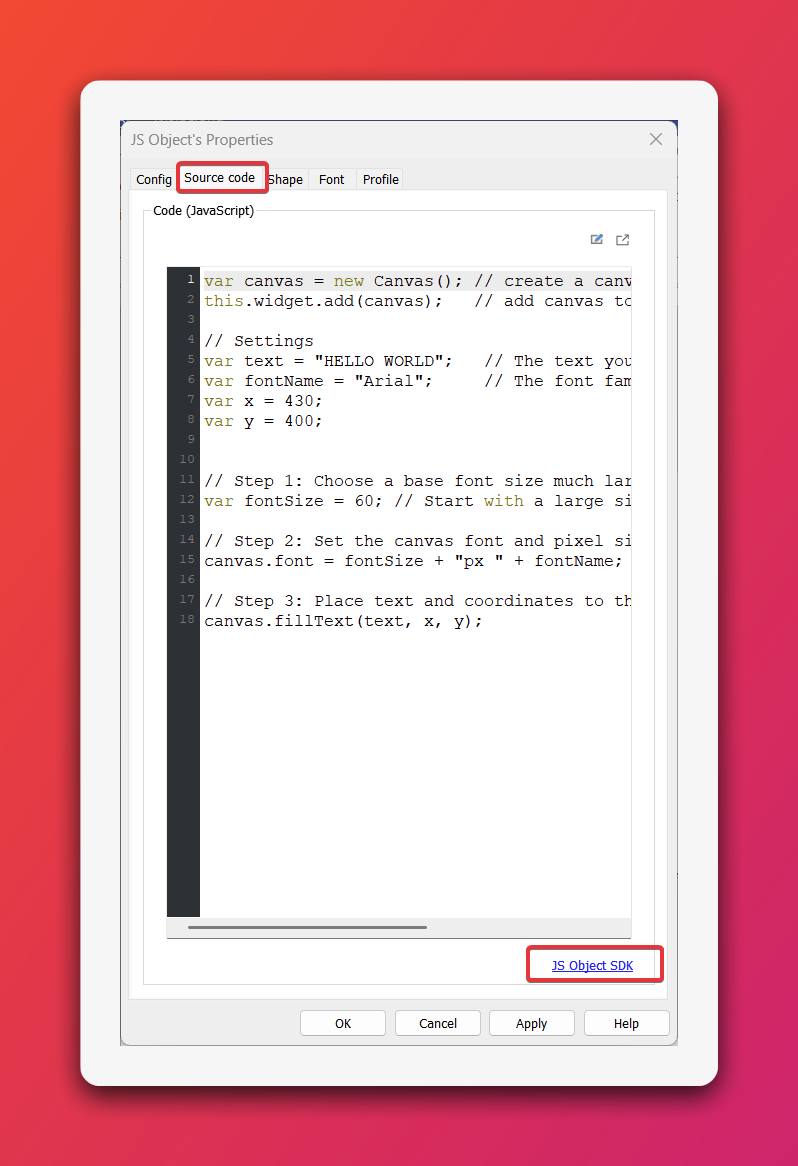
When you are done editing your script, you can select the “OK” button and place down your JS object.
Hardware and Software Requirements
- EasyBuilder Pro V6.05.01 or later
- Applicable JavaScript version: ECMAScript 2017 (Not including SharedArrayBuffer and
Atomics) - Eligible HMI model: cMT X Series
- JS objects are not supported on 32-bit Android devices