EasyAccess 2.0 is available for the iP series of HMIs. To activate EasyAccess 2.0 on your HMI, you will need to purchase an activation card. After the purchase, there are no further costs associated; once activated, it will remain active. For the activation, the HMI will need to be online so that the hardware key of the specific HMI can be read.
Below is more information on EasyAccess 2.0 if needed.
Thank you. Would you please clarify/confirm some additional points.
I understand that EasyAccess is linked/bound to a specific HMI panel as part of a Weincloud domain. Furthermore, multiple users (each with their own password) can be assigned to the domain and to the HMI. Correct?
Is there any limit on the number of users who can join the domain and be assigned to the HMI panel?
In my case there will be just a single HMI linked to the domain, but potentially 3 or 4 different users.
Once set up initially, can the domain admin role be reassigned to a different user - eg if the admin-user individual leaves the organisation?
Yes, you can add multiple users to your EasyAccess account under the same domain email. EasyAccess supports a large number of users within a single domain, and everything will function normally.
Regarding the admin role, you can either change the email associated with the existing admin account or assign the user a Super User role, which provides nearly the same level of access as an admin.
Hi,
I have successfully set up my HMI for EasyAccess. I did this within Weincloud, ie
set up domain
activated HMI using Hardware key & Activation Code
added a user
connected to the HMI via LAN/internet
However, during set-up I failed to select “HMI Viewer” under access settings, and do not seem to be able to find my way back to that setting. How do I do this? Currently I am unable to “see” the HMI Project screens via Weincloud. Please explain how I can see the HMI project via Weincloud?
I also downloaded and set-up the EasyAccess 2.0 application. I am confused about whether I should be using the Weincloud portal or EasyAccess application to access my HMI? They both work, but should I be using one or the other? Weincloud does not seem to require EasyAccess2.0 to be installed so may be more flexible.
Using EasyAccess2.0 app I had initially trouble with VNC being disabled - but discovered how to enable VNC (ie toggle LB 12092) and now I can see the HMI. However I would prefer to just set LB12092 on without having an on-screen toggle switch - or perhaps on a “hidden” screen. Is this possible?
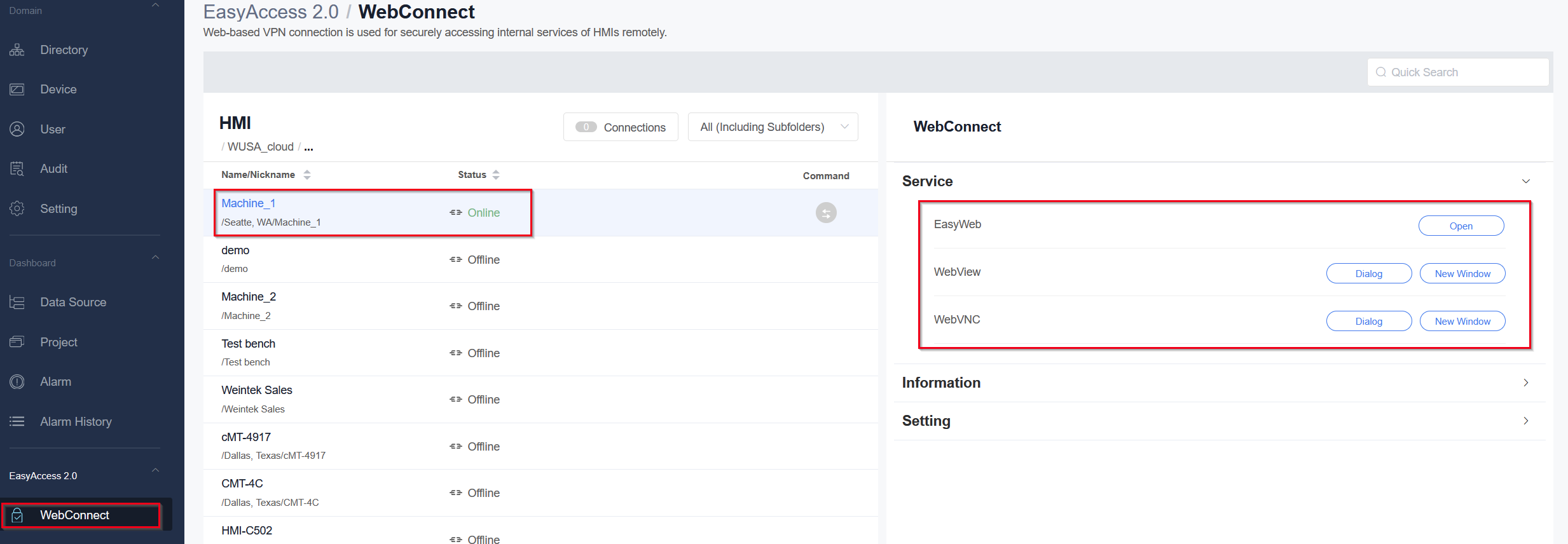
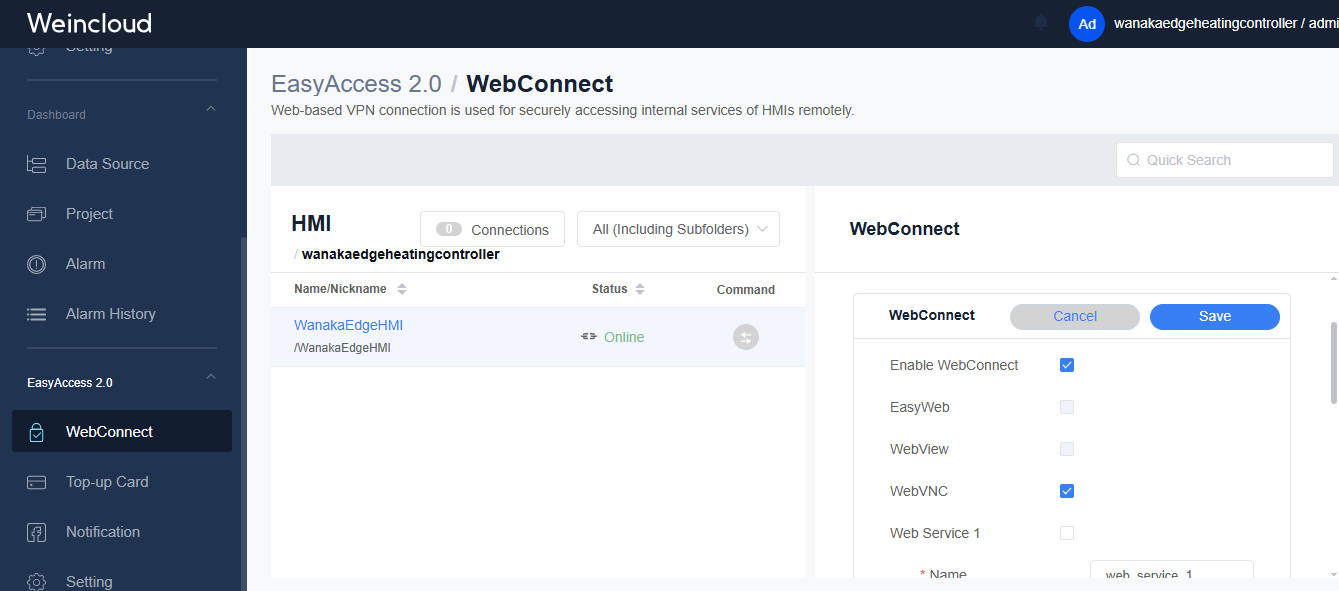
Within Weincloud when you navigate to the WebConnect tab are you able to select EasyWeb, Webview, or WebVNC to access your HMI? This should allow access to your HMI through Weincloud.
Regarding the Weincloud vs. EasyAccess 2.0 question, both are applications that allow remote access to your HMI. Weincloud functions as a browser-based version of the EasyAccess 2.0 application. Depending on your project requirements, you do not need to use both. If preferred, you can rely solely on the Weincloud browser version for added flexibility, since it does not require installing the EasyAccess 2.0 application.
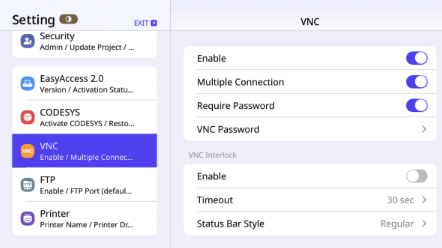
To activate the VNC viewer, you can enable VNC directly within your HMI system settings. Alternatively, you can set up a macro that runs once at program startup to automatically turn the VNC bit on.
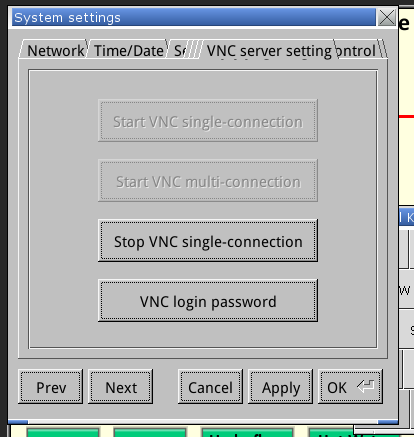
I looked at the on-screen HMI setting for VNC Server (via the remote connection). I set a password (that makes 3 passwords - WeinCLoud, HMI, VNC Server) and clicked on the “Stop VNC Single connection” (the only button available) see screenshot
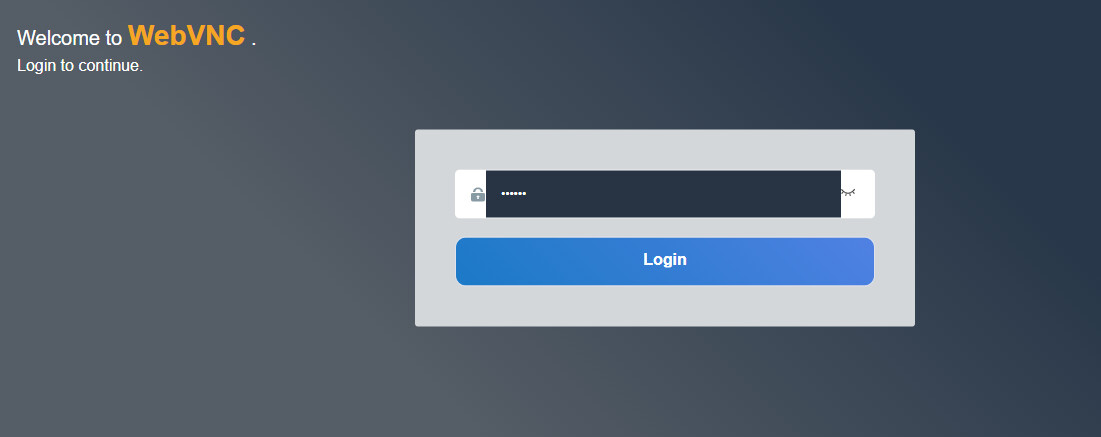
This took me to WebVNC log-in screen. (screenshot) but the log-in failed - no response until I went to the HMI panel and pressed the “start VNC single connection” button which was then active. I suspect I ended up logging-in twice by different routes. I would appreciate if you could give me some pointers for navigation.
You mentioned earlier that I could permanently enable VNC in the HMI settings. Is that what I just did or is there something else required? Do I still need the toggle switch for LB 12092?
You images is correct, after setting the “Start VNC single-connection” and “Start VNC multi-connection” to on in the system settings your VNC should be on.