Hi @jmcascales ,
Thank you for your questions. We can definitely help clarify how transparency works in EasyBuilder Pro.
For objects and windows, higher opacity makes the object more visible, while lower opacity values increase transparency.
For Common Windows and window layers, the Opacity setting in the View tab controls the transparency effect for the entire window. However, for Pop-Up Windows, Direct Windows, and Indirect Windows, transparency can be configured using the Window Transparency option within the Window settings (on cMT and cMT X models such as the cMT3162X V2).
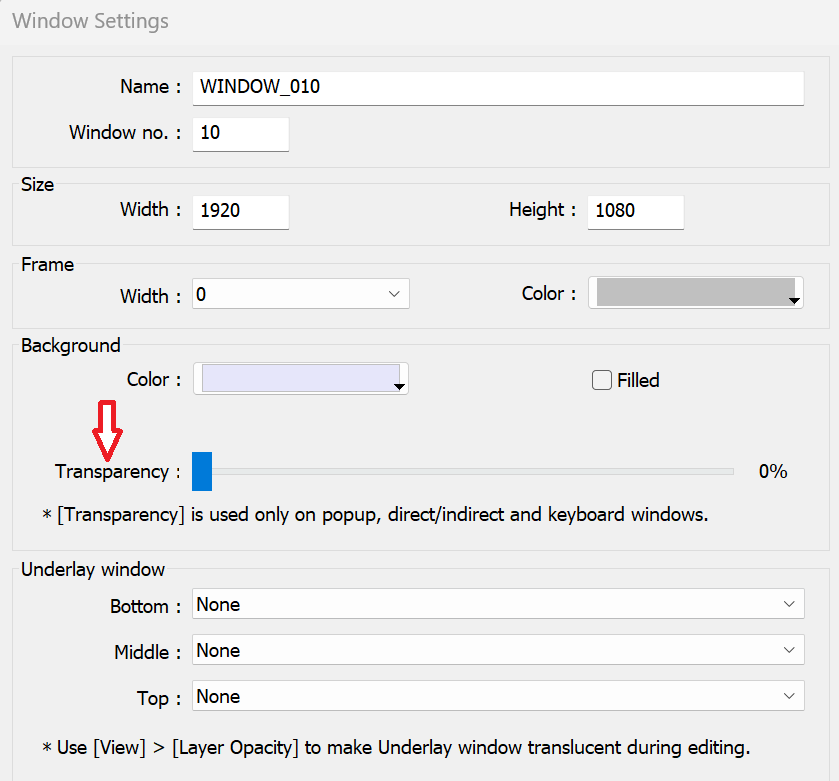
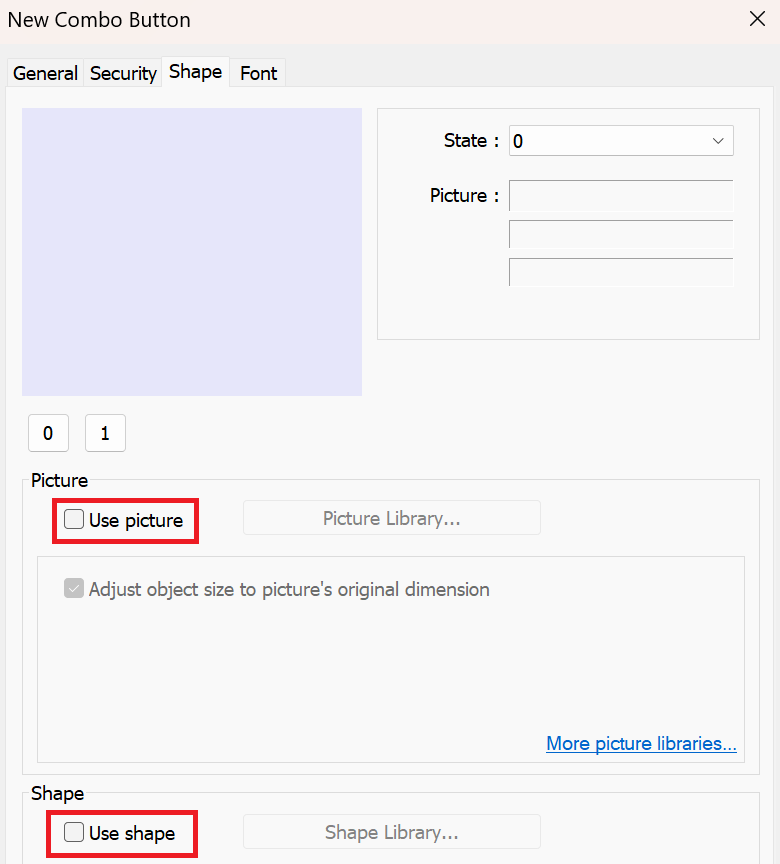
At this time, EB Pro does not have a direct opacity/transparency property for individual objects such as shapes or buttons. However, fully transparent objects can be achieved by unselecting Use picture and Use shape within the Shape tab.
To create semi-transparent overlays or underlay effects, one approach is to create a separate window that acts as the background layer, adjust the window transparency in the window settings, and display that window above or below the main content as needed. Another approach is to create semi-transparent images using an external image editor.
For a step-by-step example of creating an underlay effect, check out this forum post: How to create a background or “Underlay” window.