I have six Energy Valves that I plan to connect to my HMI via BACnet/IP. I need to monitor and control a variety of data points, including temperature, pressure, flow, and other operating parameters.
All six valves are configured identically. My goal is to have a main overview screen that displays basic information and status for each valve. From that overview, I would like users to click on a specific valve and navigate to a detailed screen showing all available data for that device.
I have already created the detailed screen for one valve and confirmed that it works correctly. Rather than recreating all of the tags and screens six times, I am wondering if there is a way to create a reusable template or popup window and pass in a parameter such as the device name, instance number, or BACnet/IP address.
Please give me any ideas or recommend an approach for this type of parameterized screen. If there is any reference information, please point me in that direction as well.
Here is a post for template window and pop up windows. You can use this as a initial attempt to create the screens you need for your program. We also have a window copy and find/replace feature which may help within your project.
Please let us know if you have any follow up questions.
At the moment, it is not possible to switch the device referenced by tags in a given window during runtime since there is no guarantee that the tags will always be available with out verification during compilation.
The best method would be to use the “Window copy” tool and duplicate the window 6 times. Then, use the Find & Replace tool to quickly replace all tags bit tags and all word tags on each screen to reference preferred device.
I started utilizing the window copy and find/replace strategy that @Brendon.S suggested referencing the documentation from @Aaron.S reply. It seems like I have to individually find and replace each tag. Is that correct? It would be really convenient if you could just search for device_1 and replace with device_2. I have been unable to do that and want to confirm before I proceed.
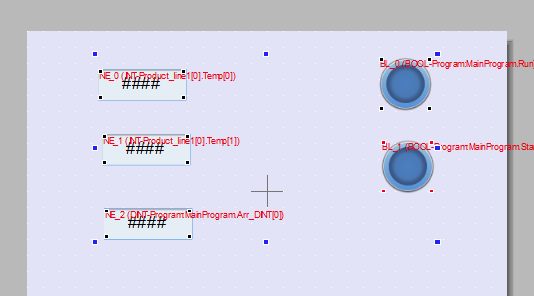
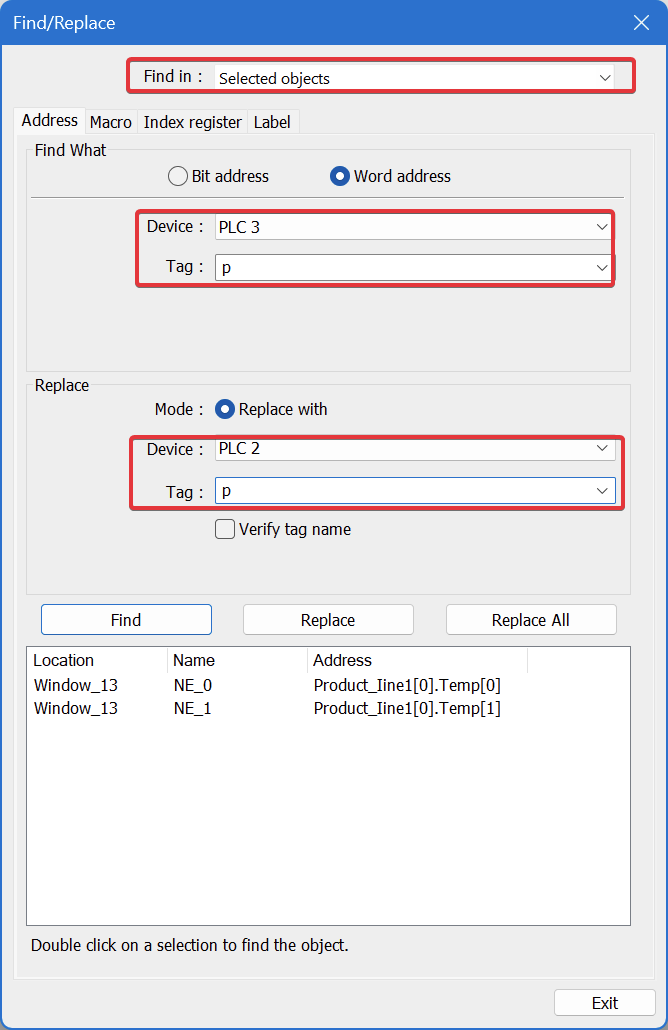
You can do a find and replace on selected objects: highlight the objects you would like to manipulate, then within the “Find in” drop-down box, click on “Selected objects.” Now you can search within just the object you want, instead of the whole window.
For replacing the device, you can switch the device. For the tags, one letter is required for finding and replacing. In my example, I selected “P,” since P is the first letter of my tag name. Now when I click “Replace All,” it will keep the address the same, but the device will switch from PLC 3 to PLC 2.